How to Pair AirPods Max 2: 60-Second Setup (iPhone/Mac)
If you just unboxed AirPods Max 2 and want sound in your ears fast, you’re in the right place. This guide shows how to pair AirPods Max 2 on iPhone and Mac, plus what to change right after they connect. Even better, you’ll get quick fixes for the common “they don’t show up in Bluetooth” problem.
Apple documents the same basic pairing flow in its official setup notes, including the short proximity setup window when you hold the headphones near your iPhone. You can double-check Apple’s steps here: Apple Support: Connect and use your AirPods Max.
Quick summary (for fast setup)
To pair AirPods Max 2 with an iPhone, keep them close, take them out of the Smart Case, then follow the on-screen setup card. To pair with a Mac, go to System Settings > Bluetooth, put the headphones in pairing mode (status light flashes white), and select them from the list.
Pair AirPods Max 2 in under 60 seconds (checklist)
- Charge check: Put AirPods Max 2 on charge for 5–10 minutes if you’re not sure they have power.
- Turn on Bluetooth: Confirm Bluetooth is on (and Airplane Mode is off) on your iPhone or Mac.
- Get close: Keep the headphones within a few inches/centimeters of your device.
- Take them out of the Smart Case: They can behave differently while in the case.
- If nothing pops up: Use manual pairing mode (steps below).
How to pair AirPods Max 2 with iPhone or iPad (automatic setup)
This is the easiest method, and it’s the one most people expect. Also, it’s the flow Apple designs for day-one setup.
Step-by-step (iOS/iPadOS)
- First, unlock your iPhone (or iPad) and stay on the Home screen.
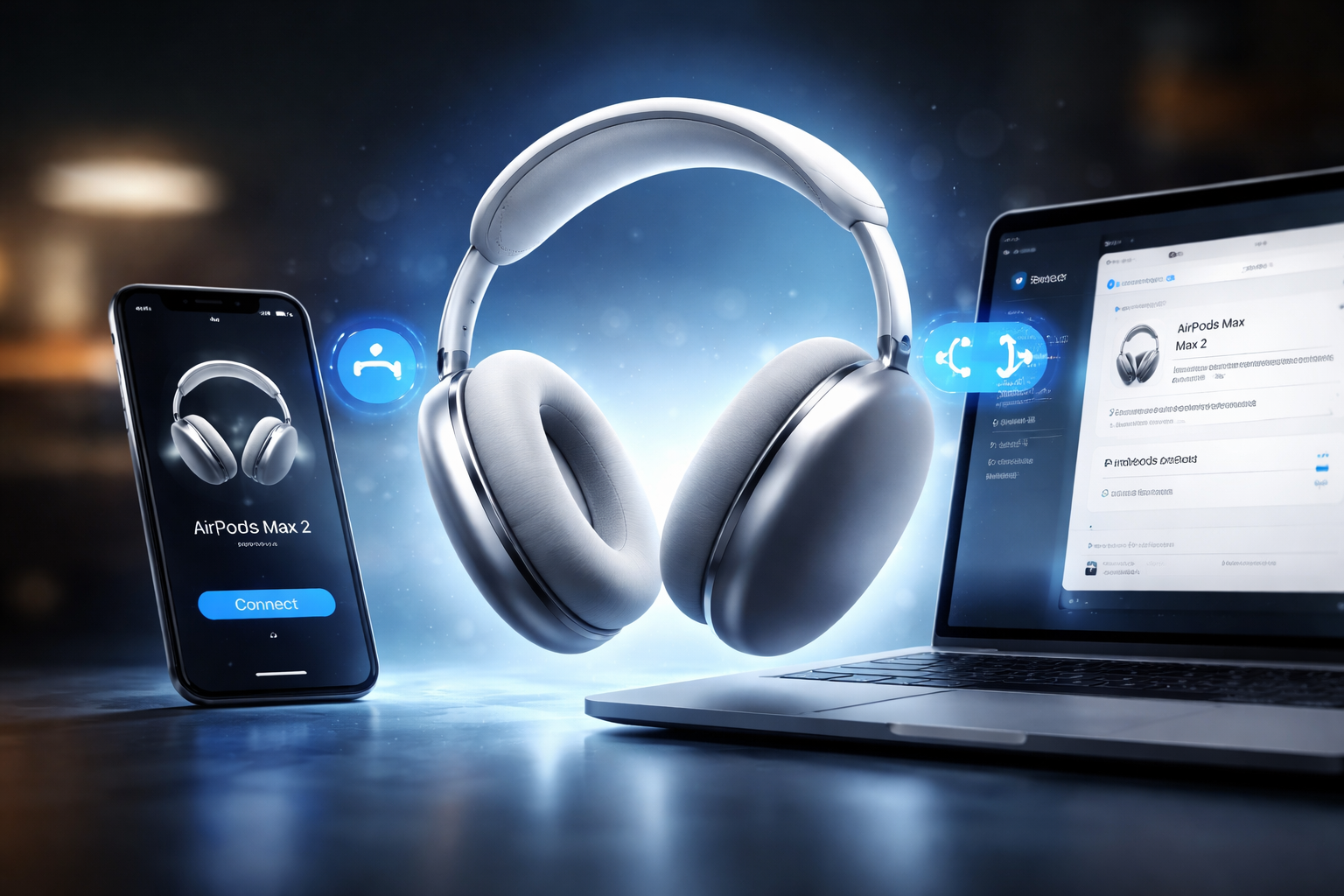
- Next, take AirPods Max 2 out of the Smart Case and hold them near your device.
- Then, wait for the setup animation card to appear.
- Tap Connect, follow any prompts (Siri, spatial audio), and tap Done.
If you want Apple’s official wording for the same process, see: Apple AirPods User Guide: Pair with an Apple device.
What if the setup animation doesn’t appear?
Don’t assume the headphones are broken. Instead, try these quick checks in order:
- Toggle Bluetooth: Turn Bluetooth off, wait 5 seconds, then turn it back on.
- Move closer: Keep the headphones right next to the phone.
- Restart the iPhone: A restart often clears stuck Bluetooth behavior.
- Use manual Bluetooth pairing: The next section covers it.
AirPods Max 2 Bluetooth pairing (manual method)
Manual pairing helps when iCloud prompts don’t show up, or when you’re pairing with a Mac or non-Apple device. In other words, this is your “works even when the fancy setup fails” option.
How to put AirPods Max 2 into pairing mode
- First, take AirPods Max 2 out of the Smart Case.
- Next, press and hold the noise control button.
- Keep holding until the status light flashes white.
That white flashing light is the key signal. It means the headphones are discoverable and ready to connect.
Manual pairing on iPhone/iPad
- Open Settings > Bluetooth.
- Make sure Bluetooth is on.
- Under “Other Devices,” tap your AirPods Max 2 when they appear.
How to pair AirPods Max 2 with macOS (MacBook/iMac)
On a Mac, pairing usually takes a few more clicks, but it’s still quick. Also, you can do this without an iPhone.
Step-by-step (macOS)
- First, click the Apple menu and open System Settings.
- Next, select Bluetooth and make sure Bluetooth is on.
- Then, put AirPods Max 2 into pairing mode (status light flashes white).
- Finally, find them in the device list and click Connect.
Apple’s Mac-specific guide matches this flow here: Apple Mac Help: Use AirPods with your Mac.
iPhone vs Mac pairing: what’s different?
- iPhone: You usually get an on-screen setup card (fastest route).
- Mac: You usually connect through System Settings > Bluetooth.
- Both: Pairing mode uses the noise control button and a white flashing status light.
After you set up AirPods Max 2: customization you should check
Once pairing works, a few settings make a big difference. So, take two minutes and set them the way you actually listen.
1) Rename your AirPods Max 2
Renaming helps if you have multiple headphones in the same house or office.
- On iPhone: Settings > Bluetooth > tap the “i” next to AirPods Max 2 > Name.
- On Mac: System Settings > Bluetooth > click the info button next to AirPods Max 2 (or right-click) > rename.
2) Noise control: ANC vs Transparency vs Off
AirPods Max 2 typically lets you switch between Active Noise Cancellation and Transparency. However, people often forget you can control what the button cycles through.
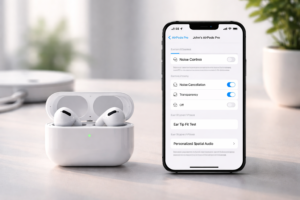
- On iPhone, open Settings > your AirPods Max 2 settings (from Bluetooth) and look for Noise Control.
- Choose which modes you want available when you press the noise control button.
3) Spatial audio and head tracking (what it really means)
Spatial audio can make supported movies and music feel wider, like the sound sits around you. Meanwhile, head tracking can “anchor” the sound to your screen so audio seems to stay put when you move your head.
- If you want the most natural feel, try Fixed first (no head tracking).
- If you watch a lot of video on iPhone/iPad, try Head Tracked and see if you like it.
4) Siri and call controls
During setup, iOS may ask you about Siri. If Siri feels too eager, you can change it later.
- On iPhone: Settings > Siri (and also the AirPods settings page) to adjust how Siri triggers.
- Also, check microphone behavior and call routing if people say you sound far away.
5) Automatic switching and iCloud sync (why it’s useful)
If you sign into the same Apple Account on your iPhone and Mac, iCloud can sync the pairing. As a result, your AirPods Max 2 may appear on other Apple devices without repeating the full setup.
Apple describes this “set up once” behavior in its support notes: AirPods Max setup and iCloud sync details.
USB-C wired audio: when it matters (and when it doesn’t)
If your AirPods Max 2 model supports USB-C wired audio, a cable can help in a few situations. For example, wired audio can reduce lag for certain apps, and it can save battery if Bluetooth stays off on your source device.
That said, pairing and customization still happen through Bluetooth on Apple devices. So, think of USB-C as an extra option, not a replacement for setup. For Apple’s compatibility notes, see: Apple AirPods User Guide pairing and connection options.
If AirPods Max 2 won’t connect: fixes ranked from easiest to strongest
When AirPods Max 2 fails to show up, the cause is usually simple: Bluetooth is off, the headphones aren’t in pairing mode, or your device needs an update. Start here and work down.
Fix 1: Confirm they’re actually in pairing mode
Press and hold the noise control button until the light flashes white. If you don’t see the white flash, try again with the headphones out of the Smart Case and close to your device.
Fix 2: Refresh Bluetooth (fast reset)
- On iPhone: toggle Bluetooth off/on in Settings (not just Control Center, if possible).
- On Mac: toggle Bluetooth off/on in System Settings.
Fix 3: Restart the device you’re pairing to
It sounds basic, but it works. A restart clears stuck background services that can block discovery.
Fix 4: Update iOS or macOS
Newer AirPods features can depend on newer OS versions. So, if pairing feels “half-working” or prompts never appear, install any pending updates and try again.
Fix 5: “Forget device” and re-pair cleanly
- On iPhone: Settings > Bluetooth > tap the “i” next to AirPods Max 2 > Forget This Device.
- On Mac: System Settings > Bluetooth > select AirPods Max 2 > Forget (or Remove) if shown.
- Then put the headphones back into pairing mode and connect again.
Fix 6: Reduce interference and confusion
Also check your environment. Too many nearby Bluetooth devices can slow discovery. If you can, move away from busy areas, or temporarily disconnect other headphones, keyboards, or speakers.
If you want the “why” behind discovery and pairing at a standards level, the Bluetooth SIG explains it clearly here: Bluetooth SIG: how Bluetooth discovery works.
Pairing AirPods Max 2 with non-Apple devices (quick notes)
AirPods Max 2 can work as regular Bluetooth headphones on many non-Apple devices. However, some Apple-only features may not work the same way (like fast switching or certain spatial audio behaviors).
- Put the headphones in pairing mode (white flashing light).
- Open Bluetooth settings on the non-Apple device.
- Select AirPods Max 2 from the list and confirm pairing.
Background and context: automatic setup vs manual Bluetooth
Automatic setup (the iPhone pop-up) is basically Apple’s shortcut. It can sign you in, enable features, and sync the headphones to your Apple Account faster. Manual Bluetooth pairing still works, though, and it’s often the best move when you troubleshoot.
So, if you only remember one thing, remember this: the white flashing light means “discoverable.” If you don’t see that, your iPhone or Mac can’t find the headphones.
Expert perspectives: what Apple says vs what users run into
Apple’s official guides focus on the ideal flow: bring the headphones close, tap Connect, and you’re done. In real life, people usually get stuck for three reasons: Bluetooth toggles that don’t refresh properly, older OS versions, or a device list that’s cluttered with old pairings.
That’s why the best troubleshooting path stays simple. First, force pairing mode. Next, refresh Bluetooth. Then, restart. Only after that should you forget and re-pair.
What happens next (and what to do if problems keep coming back)
Once you finish setup AirPods Max 2 on your main device, iCloud can make day-to-day use much smoother. Still, if your headphones keep jumping between devices at the wrong time, check your Bluetooth menus and connect manually to the device you want for that moment.
If the issue turns into constant dropouts, you may need deeper troubleshooting like a full reset. In that case, Apple’s support pages and a step-by-step reset guide can save you time.
FAQs
1) Why won’t my AirPods Max 2 show up on Bluetooth?
Usually the headphones aren’t in pairing mode, Bluetooth is off, or your iPhone/Mac needs an update. First, hold the noise control button until the status light flashes white.
2) How do I put AirPods Max 2 into pairing mode?
Take them out of the Smart Case, then press and hold the noise control button until the status light flashes white.
3) Do AirPods Max 2 connect automatically to all Apple devices?
They often do if you use the same Apple Account and iCloud across devices. However, you may need to approve the first connection on each device.
4) Can I pair AirPods Max 2 to a MacBook without an iPhone?
Yes. Go to System Settings > Bluetooth, turn Bluetooth on, put the headphones in pairing mode, then click Connect.
5) Do I need the latest iOS or macOS to connect them?
You don’t always need the newest version, but updates can fix pairing bugs and enable newer features. If setup fails, install updates and try again.
6) Can I use AirPods Max 2 with a cable instead of Bluetooth?
If your model supports USB-C wired audio, yes. Still, Bluetooth pairing remains the main way to enable Apple features and device switching.
7) What should I do if pairing gets stuck halfway?
Toggle Bluetooth off/on, restart your device, and try again. If it still fails, forget the device and re-pair from scratch.
Conclusion
Now you know how to pair AirPods Max 2 on both iOS and macOS, plus the quickest fixes when Bluetooth gets stubborn. Next, spend a minute on customization—noise control modes, spatial audio, and device switching—so the headphones feel right for how you listen.
Share this with someone who’s stuck on setup. Also, what part gave you trouble: the setup animation, Bluetooth discovery, or switching between devices? Drop a comment below and tell us what happened.