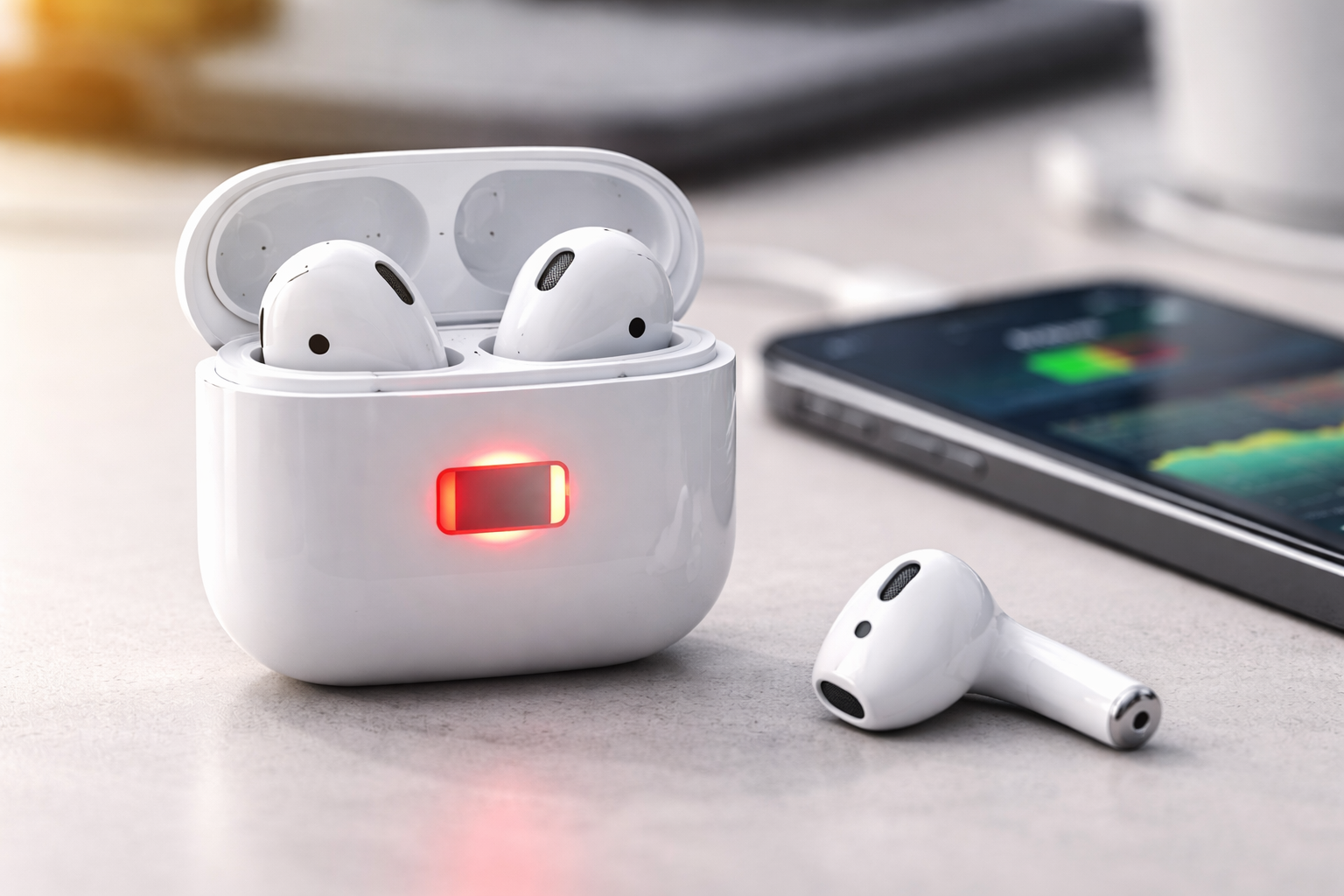
AirPods Battery Draining Fast? 7 Proven Fixes (And When It’s Time to Upgrade)
If your AirPods battery drain is getting worse by the day—dropping 20–30% during a short call or dying in the case—you’re not imagining it. Most “sudden” battery loss comes from a handful of fixable causes: settings that quietly chew power, a firmware glitch, dirty charging contacts, or a battery controller that needs a proper recalibration.
The good news: you can usually restore normal battery life in under an hour (sometimes in 15 minutes) without buying anything.
Quick Answer: How to Fix AirPods Battery Drain Fast
To fix AirPods battery drain, start by factory resetting your AirPods, then recalibrating the battery if the percentage is inaccurate or one earbud dies early. After that, reduce power-hungry features like Spatial Audio and Noise Cancellation, confirm firmware is updated, and make sure your AirPods are actually charging properly (clean contacts + reliable charger).
Why Your AirPods Battery Is Draining So Fast
Before you troubleshoot, it helps to know what’s typically behind fast drain. The most common AirPods battery issues I see (and fix) are:
- One bud draining faster (mic setting, background features, aging cell imbalance)
- Battery percentage jumping around (controller out of sync)
- AirPods “draining in the case” (case lid wakeups, Bluetooth scanning, Find My background behavior, bad contact)
- Noise control features running constantly (ANC/Transparency/Spatial Audio)
- Firmware bugs (yes, still happens)
- Charging problems (dirty pins, weak cable, off-brand charger, loose case hinge alignment)
Now let’s fix it—starting with the highest-success steps first.
7 Proven Fixes for AirPods Battery Drain (Step-by-Step)
Fix #1: Do a Proper Factory Reset (Most Effective “15-Minute” Fix)
If your AirPods battery life suddenly worsened after an iOS update, Bluetooth glitch, or pairing to multiple devices, a reset is the fastest way to clear weird behavior.
How to reset AirPods / AirPods Pro:
- Put both AirPods in the charging case and close the lid for 30 seconds.
- On iPhone: Settings → Bluetooth → tap the (i) next to your AirPods → Forget This Device.
- Open the case lid.
- Press and hold the setup button on the back of the case for about 15 seconds.
- Keep holding until the light flashes amber and then white.
- Bring the case near your iPhone and re-pair.
Why this helps: it rebuilds the Bluetooth relationship and clears odd pairing states that can keep sensors “awake” and draining.
Quick win tip: After the reset, use your AirPods for a full session (30–60 minutes) to see if drain normalizes before changing 10 other settings.
Fix #2: Recalibrate the Battery (Best for Wrong % or Uneven Drain)
If your AirPods drop from 40% to 0% out of nowhere—or one earbud dies while the other shows 25%—you may not have “bad battery” yet. You may have a battery controller that’s out of sync.
Do this recalibration cycle only when needed (not weekly), because full cycles add wear over time.
How to recalibrate AirPods battery:
- Use your AirPods until they fully drain to 0% (both buds).
- Leave them outside the case for about 2 hours (yes, outside).
- Put them back in the case and charge to 100% uninterrupted.
What to expect: The percentage reporting becomes more stable, and uneven drain often improves noticeably within the next 1–2 cycles of normal use.
Fix #3: Turn Off the Biggest Battery Hogs (Spatial Audio + Noise Control)
Features are great—until you’re trying to squeeze a full workday out of older buds.
Settings that commonly accelerate AirPods battery drain:
- Spatial Audio
- Noise Cancellation (AirPods Pro) and sometimes Transparency
- Listening at consistently high volume
What to do (quick): While audio is playing, open Control Center → press and hold the volume slider → toggle:
- Spatial Audio: Off
- Noise Control: Off (or use it only when you truly need it)
Real-life example: If you use ANC for commuting but not at your desk, switching it off at work can be the difference between “dead by 3 PM” and “still going after dinner.”
Fix #4: Enable Optimized Battery Charging (AirPods Pro / AirPods 3)
Keeping lithium batteries parked at 100% all the time speeds up aging. Apple’s Optimized Battery Charging reduces time spent at full charge by learning your routine—one of the simplest ways to slow long-term degradation.
How to enable it:
- With AirPods connected: Settings → Bluetooth → tap the (i) next to your AirPods
- Turn on Optimized Battery Charging (if your model supports it)
Why this matters: It won’t magically increase today’s playtime, but it can prevent the “my AirPods aged overnight” feeling a few months from now.
Fix #5: Confirm Firmware Is Updated (2026 Reality: Bugs Still Happen)
AirPods firmware updates happen automatically, but “automatic” doesn’t always mean “already done.” Outdated firmware can trigger weird battery behavior, including fast drain and connection loops.
How to nudge a firmware update:
- Put AirPods in the case.
- Connect the case to power (cable or MagSafe/Qi if supported).
- Keep your iPhone nearby on Wi‑Fi for 15–30 minutes.
Extra tip: After updating, a quick reset (Fix #1) sometimes stabilizes battery behavior even more.
Fix #6: Fix Charging Problems (Dirty Contacts + Sketchy Chargers = “Drain”)
A lot of people think their AirPods are draining fast… when the real issue is that they’re not charging fully (or one bud isn’t charging at all). That turns “normal usage” into “why are these dying so quickly?”
What to check:
- Clean the AirPods stems and the case’s charging pins (gently).
- Make sure each bud “snaps” into place magnetically.
- Try an official Apple cable/charger (or a high-quality MFi-certified option).
Quick test: Put AirPods in the case, open lid near iPhone, and verify both buds show the charging icon. If one doesn’t, that’s your culprit.
AirPods charging habit that helps: Avoid repeatedly opening the case just to check the battery. It wakes things up and can contribute to background activity (especially if you do it all day).
Fix #7: Stop “Background Drain” (Case Storage + Find My + Mic Setting)
If your AirPods battery drain happens even when you’re not using them, focus here.
Keep AirPods in the case when not in use
Leaving them on a desk or in a pocket outside the case can trigger constant Bluetooth scanning and sensor activity.
Check Find My behavior (especially if you don’t use it)
Find My can be useful, but if you never rely on it and you’re troubleshooting severe drain, disabling related background behavior may help.
Set Microphone to Automatic (reduces one-bud drain)
If your mic is forced to “Left” or “Right,” that side often works harder (especially on calls), which can cause one AirPod to die sooner.
How: Settings → Bluetooth → (i) next to AirPods → Microphone → Automatic
Fast Checklist: Fix Battery AirPods Without Guesswork
- Reset (amber → white flash)
- Recalibrate only if % is wrong or one bud dies early
- Turn off Spatial Audio + ANC when you don’t need them
- Enable Optimized Battery Charging (supported models)
- Update firmware (charge + Wi‑Fi + time)
- Clean contacts and use a reliable charger
- Store in case, set mic to Automatic, reduce background drain
When Fixes Aren’t Enough: Is It Time to Replace or Upgrade?
AirPods batteries are tiny and not realistically user-replaceable in a normal DIY sense. If you’ve done the reset + recalibration + charging checks and you still get terrible runtime, your battery may simply be worn.
Signs you should seriously consider replacement:
- You get under 1–2 hours per charge with light use
- One bud dies consistently, even after mic set to Automatic + recalibration
- AirPods won’t hold charge overnight in the case despite clean contacts
- Battery health keeps worsening week to week
Best Upgrade Options (If You’re Done Fighting Battery Drain)
If you rely on your AirPods daily—calls, commutes, gym—an upgrade can be cheaper (and less annoying) than constantly managing battery quirks.
Option 1: AirPods Pro (2nd Gen) — Best Overall Upgrade for Battery + Features
Why it’s worth considering: AirPods Pro 2 are rated for up to 6 hours per charge and up to 30 hours total with the case, plus improved noise cancellation and newer Bluetooth performance.
- Pros: Strong battery, excellent ANC, great “daily driver” earbuds
- Cons: Still a non-replaceable battery long-term; higher upfront cost
- Best for: Heavy ANC users, frequent calls, daily listeners who want fewer battery headaches
Money-saving move: If new pricing feels steep, check renewed/refurbished AirPods Pro 2 deals (often substantially cheaper) from reputable marketplaces. If you’re already considering replacement because of battery, renewed can be the sweet spot.
Option 2: AirPods (3rd Gen) — Better Value If You Don’t Need ANC
- Pros: Solid everyday performance, supports optimized charging, often cheaper than Pro
- Cons: No active noise cancellation
- Best for: Casual listening, work calls in quiet spaces, budget-minded upgrades
Option 3: Battery Swap Services (If You Want to Keep Your Pair)
If your AirPods fit perfectly and you don’t want to switch models, a swap service (like Podswap-style programs) can be more practical than buying new—especially for older gens where upgrades feel expensive for “basically the same thing but newer.”
Buyer Guidance: What Should You Do Next?
Here’s the simplest decision path:
- If your AirPods used to be fine and suddenly drain fast: Do Fix #1 (reset) and Fix #5 (firmware) today.
- If battery % is inaccurate or one bud dies early: Do Fix #2 (recalibration) and set Mic to Automatic.
- If they “drain in the case”: Do Fix #6 (clean + charger) and keep them stored in the case.
- If you need longer runtime and use ANC daily: Consider AirPods Pro 2—the battery jump alone is usually worth it.
- If you want the cheapest path to “good enough”: Look at renewed AirPods pricing first before paying full retail.
FAQs: AirPods Battery Drain and Charging Problems
Why are my AirPods battery draining so fast even in the case?
This usually happens when one AirPod isn’t making solid contact with the charging pins (dust/debris), the case is repeatedly waking due to frequent lid opens, or background features (Bluetooth scanning/Find My behaviors) keep activity running. Clean contacts, stop unnecessary case opens, reset AirPods, and confirm both buds show the charging icon.
How do I fix AirPods battery drain on iOS 18?
On iOS 18, the most reliable fixes are: reset AirPods, ensure firmware updates by charging near your iPhone on Wi‑Fi, enable Optimized Battery Charging (supported models), and disable Spatial Audio/ANC when not needed.
Can I recalibrate AirPods battery?
Yes. Drain them to 0%, leave them out of the case for about 2 hours, then charge to 100% uninterrupted. Use this when you see inaccurate percentages, sudden shutdowns, or uneven drain—not as a weekly routine.
Do AirPods Pro 2 battery drain faster than other models?
Not inherently. They have strong rated battery life, but ANC/Transparency/Spatial Audio can increase consumption. If you see abnormal drain, it’s usually firmware, settings, or charging-contact related rather than the model itself.
How to reset AirPods Pro for battery issues?
Forget the AirPods in Bluetooth settings, then hold the case setup button for ~15 seconds until the light flashes amber then white, and re-pair.
When should I replace AirPods instead of trying more fixes?
If you’ve reset, recalibrated, cleaned contacts, verified charging, and the runtime is still very low (or dropping rapidly week-to-week), the battery is likely degraded. At that point, upgrading (often to AirPods Pro 2 for up to 30 hours with the case) or choosing a renewed/refurb option is usually the better move.
Does noise cancellation drain AirPods battery?
Yes. ANC (and other advanced audio processing like Spatial Audio) uses extra power. Turning noise control off when you don’t need it can noticeably extend runtime, especially on older batteries.
Conclusion: Fix It Today—Then Decide If an Upgrade Is Worth It
Most AirPods battery drain problems come down to a reset, a proper recalibration, and removing the sneaky stuff that keeps your AirPods working in the background. Start with the 15-minute reset, confirm both buds are charging correctly, then trim features like Spatial Audio and Noise Cancellation when you don’t need them.
If you’ve done all 7 fixes and your battery is still tanking, don’t waste weeks fighting worn cells. Consider a battery swap service or upgrade—especially if you want the simplicity of longer runtime and fewer charging interruptions.
Next step: Try Fix #1 (reset) right now. If battery life doesn’t improve within the next day of normal use, start comparing AirPods Pro 2 (new vs renewed) so you can stop babysitting your charge percentage.