AirPods Mic Not Working? Here’s the Complete Fix Guide (Do These Before You Pay for a Replacement)
If your AirPods mic not working problem is wrecking calls, voice notes, or Zoom meetings, you’re not alone—and you usually don’t need a repair appointment to fix it.
Most “dead mic” cases come down to one of three things: a simple iPhone setting, a battery mismatch (one bud is low/dead), or a blocked microphone mesh (yes, sometimes it’s not earwax—it’s adhesive). The good news? You can troubleshoot all of that in under 15 minutes.
Quick tip: Save this page or screenshot the checklist—AirPods microphone issues love to come back at the worst possible time.
Quick Answer: How to Fix AirPods Mic Not Working (Fast)
To fix an AirPods mic not working issue, start by charging both AirPods fully, placing them in the case for 30 seconds, and reconnecting. Then go to Settings > Bluetooth > (i) AirPods > Microphone and set it to Always Left or Always Right (instead of Automatic). If it still fails, clean the mic mesh gently and do a factory reset.
Before You Start: Confirm It’s Really an AirPods Microphone Issue
This takes 60 seconds and prevents you from chasing the wrong fix.
- Test 1 (Voice Memos): Open Voice Memos, record 5 seconds, play it back. If you hear silence or extremely faint audio, it’s likely the AirPods mic input.
- Test 2 (Call test): Call a friend (or voicemail). Ask if you sound muffled, robotic, or like you’re far away.
- Test 3 (One earbud at a time): Put in only the left AirPod, test. Then only the right, test. If one works and the other doesn’t, you’ve already narrowed the fix.
Money-saver note: Apple replacement costs can jump quickly depending on model and warranty status. Try these free steps first—most people fix their mic without spending anything.
The 10-Step Fix Guide (Start at #1 and Stop When It Works)
1) The 30-Second Case Reset (Fixes a surprising number of “AirPods call issue” problems)
This is the simplest reconnection reset and it works more often than it should.
- Put both AirPods in the charging case.
- Close the lid for 30 seconds.
- Open the lid, put them in your ears, and try a call or Voice Memo again.
2) Charge Both AirPods to 100% (Yes—battery can break the mic)
When one earbud is low or dead, your iPhone may struggle to select a working microphone (especially on “auto” switching). Below ~20% battery, mic performance can get flaky.
- Charge the case and both buds until they’re full.
- Retest with one earbud at a time.
3) Change the Microphone Setting (The #1 real-world fix)
This is the most common reason people think their AirPods mic is “dead.” Automatic switching can glitch, or it can keep picking the earbud with the weaker mic.
Do this:
- Go to Settings > Bluetooth
- Tap the (i) next to your AirPods
- Tap Microphone
- Select Always Left AirPod (test)
- If needed, switch to Always Right AirPod (test)
Why this works: If only one mic is blocked or faulty, forcing the working side instantly fixes the issue—no resets, no repairs.
4) Toggle Automatic Ear Detection (It can “unlock” mic selection)
Automatic Ear Detection helps AirPods decide when they’re in your ears (and which one should act as the mic). When it bugs out, you get intermittent mic failures.
- Settings > Bluetooth > (i) AirPods
- Toggle Automatic Ear Detection OFF
- Wait 10 seconds
- Toggle it ON again
- Retest
5) Forget and Re-Pair Your AirPods (Fixes corrupted Bluetooth profiles)
If your iPhone saved a bad Bluetooth profile, your AirPods can play audio but fail on mic input (classic “I can hear them but they can’t hear me”).
- Settings > Bluetooth
- Tap (i) next to AirPods
- Tap Forget This Device
- Put AirPods in case, open lid near iPhone, and re-pair
6) Do a Proper Factory Reset (The “nuclear option” that often works)
If your AirPods microphone issue survives the steps above, do a full reset. This clears the internal pairing state that can get stuck.
- Put AirPods in the case and keep the lid open.
- Press and hold the setup button on the back of the case for about 15 seconds.
- Release when the light flashes (you’ll typically see amber then white).
- Re-pair with your iPhone and retest mic.
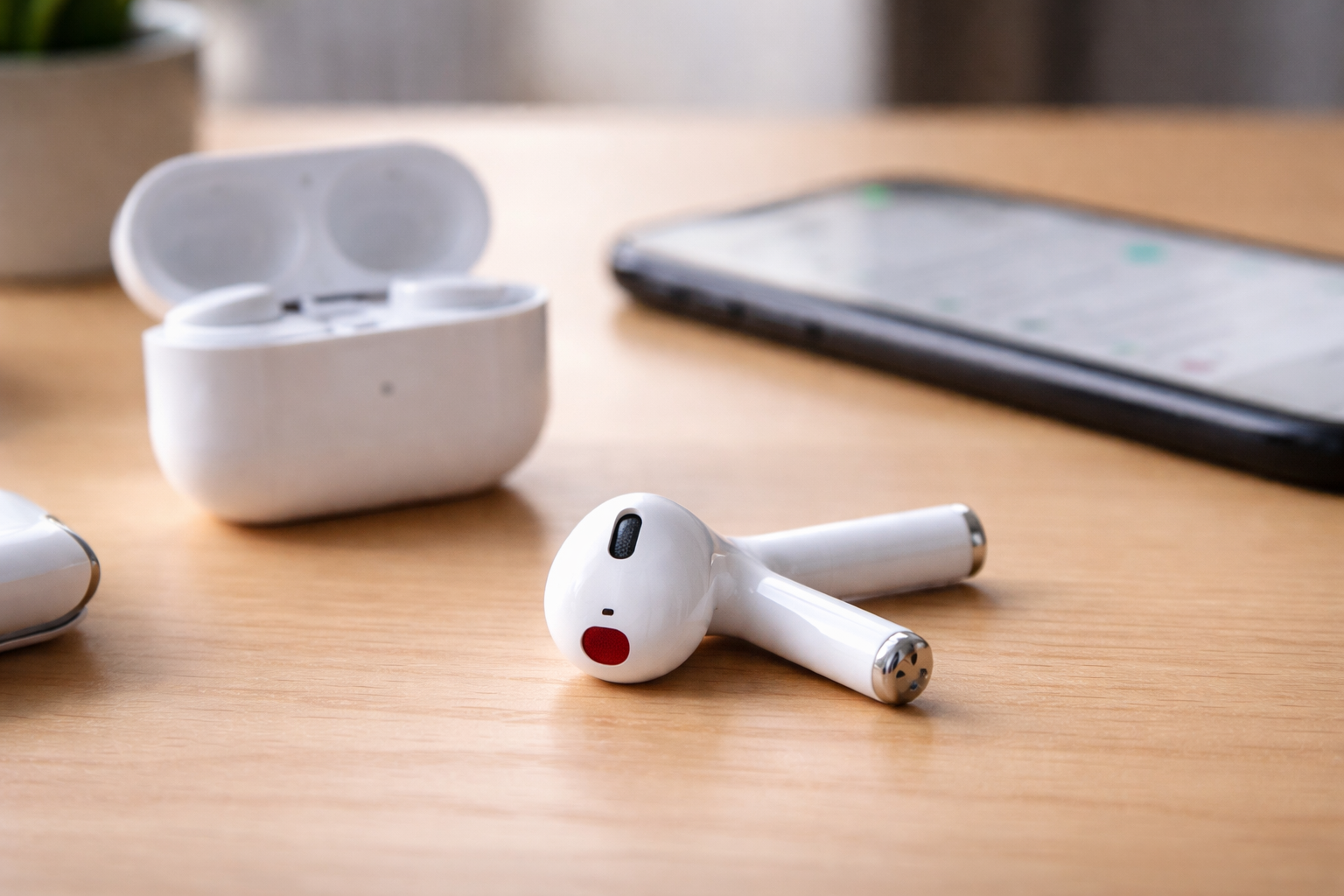
7) Clean the Microphone Mesh (The underrated fix—especially for AirPods Pro)
If you’ve ever had people say, “You sound far away,” this is the section that usually fixes it.
Important: Don’t blast compressed air into the mesh and don’t pour liquid on your AirPods.
Safe cleaning method (works for earwax, dust, and the weird adhesive-blockage issue):
- Use a dry, soft brush first (a clean, soft toothbrush works).
- Use a cotton swab with a tiny amount of 70%+ isopropyl alcohol (damp, not dripping).
- Gently dab around the mic openings/mesh—don’t scrub aggressively.
- Let it dry for 10 minutes before testing.
About that “glue” problem: Some users mistake it for earwax, but it can be reactivated manufacturing adhesive on the mic mesh—especially after moisture/heat exposure. Cleaning gently often restores the mic instantly.
8) Update iOS (Your phone OS can cause AirPods call issues)
If your iPhone is behind on updates, you can get compatibility bugs that look like a microphone failure.
- Go to Settings > General > Software Update
- Install any available update
- Restart your iPhone and retest
9) Check AirPods Firmware (Mic glitches can be firmware-related)
AirPods firmware updates happen automatically, but you can still check your version.
- Connect AirPods to iPhone
- Go to Settings > General > About
- Scroll to your AirPods and tap
- Look for Firmware Version
If you’re on an older firmware (older than the commonly referenced baseline 5E135 in many troubleshooting reports), update by: keeping AirPods in the case, charging nearby, and leaving them close to your iPhone (connected to Wi‑Fi) for a while.
10) Reset Network Settings (The “hidden” fix when Bluetooth is acting cursed)
This one feels unrelated, but it can fix strange pairing/mic routing issues.
- Go to Settings > General > Transfer or Reset iPhone
- Tap Reset > Reset Network Settings
Note: This will remove saved Wi‑Fi networks and Bluetooth devices, so you’ll re-pair afterward.
Model-Specific Notes (Because AirPods Don’t All Behave the Same)
AirPods (2nd Gen)
- Most issues are settings/firmware related.
- If one mic works and the other doesn’t, forcing Always Left/Always Right is often the quickest permanent workaround.
AirPods Pro / Pro 2
- Mic blockage is more common due to fit, earwax buildup, and mesh exposure.
- If you use them for workouts, cleaning + drying time makes a big difference.
AirPods (newer generations / “Pro 3” references)
- Input mode settings and auto-switching behavior can still glitch—manual mic selection is still a top fix.
AirPods Max
- Different reset procedure (button-based on the headphones).
- If you mainly use AirPods Max on calls, check your Mac/iPhone input selection too (it’s easy to accidentally select the wrong microphone device).
Using AirPods on Windows or Android? Here’s the Reality
You can absolutely connect AirPods to Windows/Android, but microphone performance is often inconsistent compared to Apple devices.
- Windows: Make sure your input device is set to “Headset (AirPods)” for mic, not “Headphones (AirPods)” (which is usually output-only).
- Android: Some apps handle Bluetooth mic input better than others. If the mic works in phone calls but not in one specific app, it’s often an app permission or app routing issue.
If you need a mic that “just works” for calls on Windows all day, a dedicated headset can be less stressful. But if your main ecosystem is iPhone/iPad/Mac, AirPods are usually excellent once the settings are corrected.
DIY Fix vs. Repair vs. Replace (Simple Decision Guide)
If you’re wondering whether this is a real hardware failure, use this quick decision path.
Choose “DIY Fix” if…
- Audio playback sounds normal, but mic input is missing/muffled.
- The mic works on one side only.
- The issue appeared after an iOS update, a device switch, or pairing changes.
- You suspect dirt, earwax, moisture, or blockage.
Contact Apple Support / AppleCare+ if…
- The mic fails on multiple Apple devices even after a factory reset.
- You hear crackling, random cutouts, or the AirPods disconnect constantly.
- There was a drop, water exposure, or visible damage.
Replace (often the most cost-effective out of warranty) if…
- Your AirPods are 3+ years old and the mic failure is persistent.
- Cleaning + forced mic selection + reset didn’t help.
- Battery life is also declining (short call time is a giveaway).
Conversion note (worth considering): If you’re close to paying an out-of-warranty per-earbud replacement fee, it can make more sense to upgrade—especially if you take calls in noisy places. The newer Pros generally deliver better voice isolation and more stable mic behavior.
Best Replacement Options (If Fixing It Isn’t Worth the Headache)
If you’ve tried everything and the microphone still won’t cooperate, here are the most practical “next step” buys depending on your situation.
Option 1: Replace with the same model (lowest friction)
- Best for: People who like their current fit and just want the same experience back.
- Why: No learning curve, no fit surprises.
Recommended: Check current pricing on your exact model and compare it to Apple’s out-of-warranty replacement cost—sometimes a full new set is only slightly more.
Option 2: Upgrade to AirPods Pro (better for calls in noise)
- Best for: Frequent callers, commuters, remote workers.
- Why: Typically stronger call performance in real-world environments and better noise handling.
Option 3: If you live on calls all day: consider a call-focused headset
- Best for: Windows-first users, customer support, constant Zoom/Teams calls.
- Why: More consistent mic pickup and fewer Bluetooth profile headaches.
If you want, tell me your exact AirPods model and what device you’re using (iPhone/Android/Windows/Mac), and I can point you to the best replacement path without overspending.
FAQs: AirPods Mic Not Working
Why is my AirPods microphone not working but I can still hear audio?
This is usually a settings, firmware, or blockage issue—not a full hardware failure. The most common causes are the mic being set to automatic switching (and picking the “bad” side), one earbud battery being too low, debris/adhesive blocking the mic mesh, or outdated firmware/iOS.
How do I fix mic AirPods problems in under 5 minutes?
Do this quick sequence: (1) put AirPods in the case for 30 seconds, (2) set Microphone to Always Left or Always Right, and (3) restart your iPhone. This resolves a large chunk of cases fast.
Is cleaning my AirPods safe? What’s the safest method?
Yes—if you’re gentle. Use a soft brush first, then a cotton swab lightly dampened with isopropyl alcohol. Dab the mic openings carefully. Never pour liquid onto AirPods and avoid aggressive scraping.
What should I do if none of these fixes work?
Try (1) updating iOS, (2) checking AirPods firmware, (3) resetting network settings, and (4) doing a factory reset. If the mic still fails on multiple devices, contact Apple Support—especially if you have AppleCare+.
Why does my AirPods mic work sometimes but not always?
Intermittent issues usually come from Automatic Ear Detection glitches, unstable Bluetooth routing, low battery on one earbud, or firmware quirks. Fully charge, force the mic to one side, and toggle ear detection.
Can I use the AirPods mic on Windows PC or Android?
Yes, but it can be inconsistent. On Windows, you often need to manually select the “Headset” input profile. On Android, mic behavior can vary by app. For best reliability, AirPods mic performance is strongest inside Apple’s ecosystem.
How do I know if this is hardware damage?
If you’ve factory reset, cleaned the mic mesh, forced mic to left/right, and tested on another Apple device—and it still doesn’t work—hardware failure becomes more likely (especially after drops or moisture exposure).
Conclusion: Fix the Mic First, Spend Money Second
When your AirPods mic not working issue hits, the smartest move is to start with the high-success fixes: charge both buds, force the microphone to one side, clean the mic mesh, then factory reset if needed. In most cases, that’s enough to bring your mic back without paying replacement prices.
Next step: If you’re still stuck after trying the steps above, check your warranty/AppleCare+ coverage or compare current pricing on a replacement set—sometimes upgrading costs less than piecemeal repairs.