Why Are My AirPods Not Connecting? Fix It Fast (Quick Troubleshooting That Actually Works)
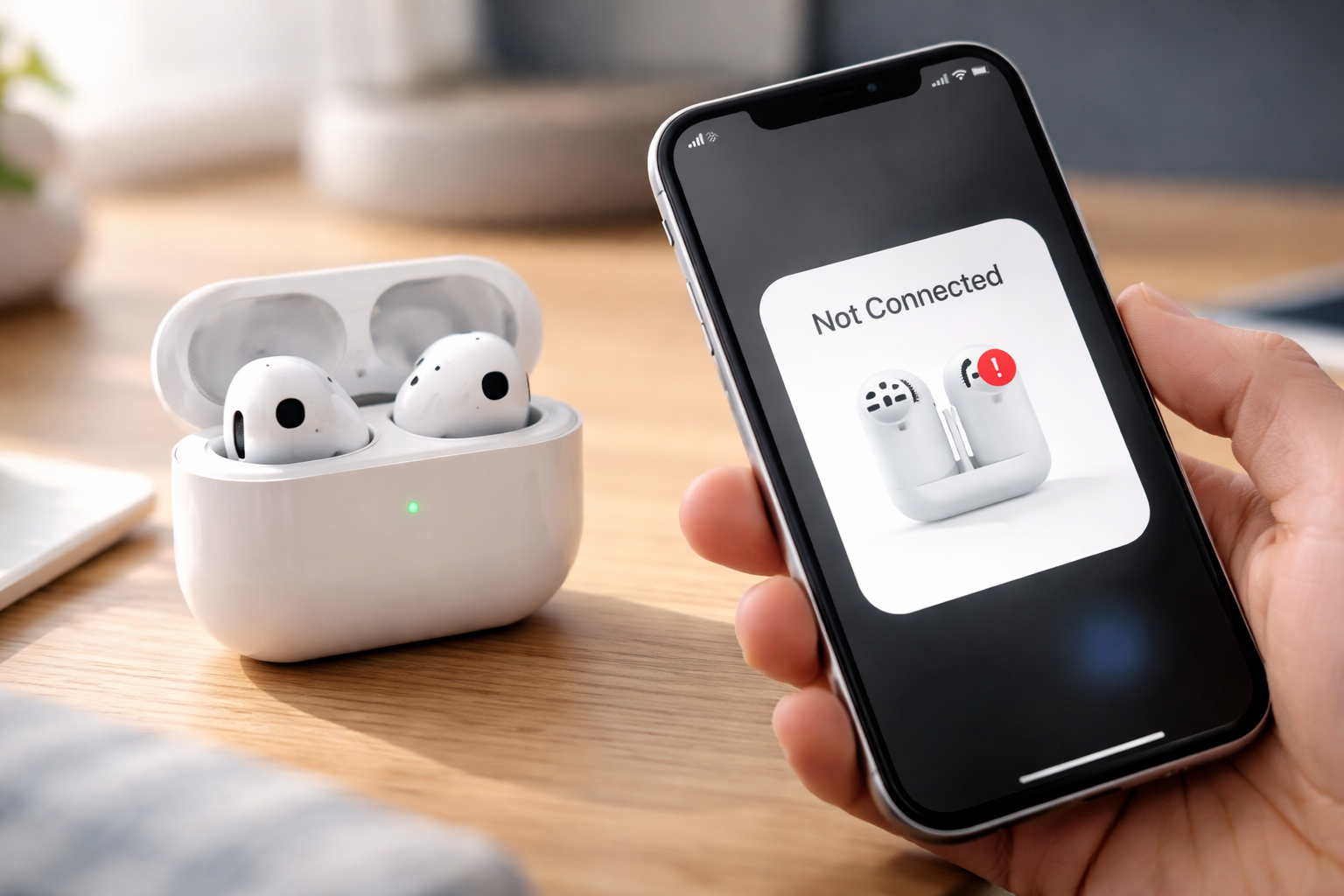
Your AirPods pick the worst possible moment to quit—right before a call, mid-workout, or when you finally sit down to focus. If you’re staring at your phone thinking “why are my AirPods not connecting?” you’re not alone… and the good news is this is usually fixable in minutes.
Most connection failures aren’t “dead AirPods.” They’re small glitches: Bluetooth acting up, a drained case (sneakily common), or your AirPods still trying to connect to a different device you forgot about. Below is the fastest troubleshooting order I use (and recommend) so you don’t waste time on random steps.
Quick Answer (Try This First)
If your AirPods not connecting problem just started, do this in order:
- Turn Bluetooth off/on (Settings > Bluetooth).
- Put AirPods in the case, close it for 15–30 seconds, then reopen near your iPhone.
- Charge the case + AirPods for 15 minutes (a dead case can block pairing even if earbuds seem “fine”).
- Factory reset (usually the real fix): hold Setup for ~15 seconds until the light flashes amber, then white.
The 5-Minute Fix Order (Do These Before Anything Else)
1) The “Case Nap” reset (ridiculously effective)
This sounds too simple, but it fixes a ton of temporary pairing weirdness.
- Put both AirPods in the case.
- Close the lid for 15–30 seconds.
- Open the lid next to your iPhone/iPad.
If the AirPods pop up on-screen, tap Connect. If they connect but audio still plays from the phone speaker, jump to the “Audio Output” step below.
2) Toggle Bluetooth (30 seconds)
Bluetooth glitches are the most common reason AirPods issues appear “out of nowhere.”
- On iPhone: Settings > Bluetooth > Off, wait 5 seconds, then turn it On.
- Optional (often helps): Toggle Airplane Mode On for 5 seconds, then Off.
3) Make sure you’re sending audio to the AirPods (easy to miss)
Your AirPods can be connected… while your iPhone is still routing sound to the speaker.
- Open Control Center.
- Tap the AirPlay audio icon (top-right of the Now Playing tile).
- Select your AirPods.
If you see your AirPods listed but they won’t switch, continue below—this is usually a Bluetooth conflict or a reset situation.
4) Charge the case (yes, the case—more than the earbuds)
A depleted case battery is a sneaky reason AirPods troubleshooting gets stuck. The case isn’t just storage—it’s part of the pairing/charging system. If the case is dead, your AirPods may refuse to connect or behave inconsistently.
- Plug the case into power for 15 minutes.
- Look for the status light (inside the case or front, depending on model).
AirPods Status Light Guide (Diagnose in 10 Seconds)
The case light tells you what’s happening—use it before you guess.
| Light behavior | What it usually means | What to do next |
|---|---|---|
| Green | Fully charged (or enough charge) | Focus on Bluetooth, device switching, or reset steps |
| Amber | Charging / low battery | Charge 15–30 minutes, then retry pairing |
| Flashing White | Pairing mode | Go to Bluetooth list and connect |
| Flashing Amber (or amber then white) | Reset / needs re-pairing | Finish factory reset and reconnect |
| No light | Case battery may be dead (or light not triggering) | Charge with another cable/charger, clean contacts |
AirPods Not Connecting: The Fast Decision Tree
If you want the shortest path to the fix, follow this flow:
- Step A: Do you see any case light?
- No → Charge case 15–30 minutes → try a different cable/brick → clean charging port.
- Yes → continue.
- Step B: Is the light green?
- Yes → It’s likely Bluetooth/device switching → toggle Bluetooth → forget device → reset.
- No (amber) → Charge first, then retry.
- Step C: Do they show in Bluetooth but won’t play audio?
- Select AirPods in Control Center > AirPlay → then reset if it still won’t route.
- Step D: Still failing?
- Do the factory reset (most reliable fix).
Deeper AirPods Troubleshooting (By Root Cause)
Cause #1: Bluetooth confusion (too many devices fighting for your AirPods)
If you use an iPhone + Mac + iPad + Apple Watch, your AirPods may be “helpfully” switching… and ending up connected to the wrong thing. This is one of the most common real-world AirPods issues.
Fix: temporarily disconnect other devices.
- On your Mac: System Settings > Bluetooth > click the AirPods > Disconnect.
- On iPad: Settings > Bluetooth > tap the “i” > Disconnect.
- Then reconnect from your main device (usually your iPhone).
Pro tip: If your AirPods keep hijacking to your Mac during work hours, you can reduce chaos by turning Bluetooth off on the Mac when you’re not using it.
Cause #2: Your device OS is outdated (pairing gets flaky)
Not fun, but true: old iOS/macOS versions can cause stubborn connection problems—especially after you’ve updated one device but not the other.
- iPhone/iPad: Settings > General > Software Update
- Mac: System Settings > General > Software Update
After updating, restart the device and try connecting again.
Cause #3: AirPods firmware is lagging behind (it happens quietly)
AirPods firmware usually updates automatically (when AirPods are in the case, charging, and near your iPhone with Wi‑Fi). But if your AirPods are behaving weirdly for days, it’s worth checking.
- iPhone: Settings > Bluetooth > tap the “i” next to your AirPods
- Look for Version (firmware)
If you suspect an update is stuck: put AirPods in the case, plug them in, keep them near your iPhone, and leave it for 20–30 minutes.
Cause #4: Dirty charging contacts (one of the most overlooked fixes)
If one AirPod won’t connect or the case light behaves inconsistently, there’s a good chance one earbud isn’t charging properly. Tiny pocket lint is enough.
Fix: clean the charging points safely.
- Use a dry cotton swab to gently clean inside the case where the earbud stems sit.
- Use a soft brush for stubborn debris.
- Avoid liquid cleaners unless you know exactly what you’re doing.
If you’re constantly dealing with gunk (gym use, pockets, dusty bag), a small cleaning kit is one of those cheap purchases that prevents repeat headaches. If you want one, look for an “AirPods cleaning kit” with a soft brush + precision swabs (great to keep in your desk or travel bag).
Cause #5: Your Lightning/USB-C cable or charging port is the real problem
People blame the AirPods, but the case never actually charges because the cable is frayed or the connector is dirty. Result: your AirPods not connecting because the case battery is effectively dead.
- Try a different cable and different power brick.
- Check the case port for lint (carefully remove with a non-metal tool).
- If you use wireless charging, try wired charging (or vice versa) to isolate the issue.
How to Reset AirPods (Model-by-Model)
If your AirPods are still refusing to cooperate, resetting is the fastest “real” fix. There are two levels:
- Soft reset: case closed 15–30 seconds, reopen (we did this above)
- Factory reset: erases pairings and rebuilds the connection from scratch
Factory Reset (Most AirPods / AirPods Pro with Setup Button)
This applies to many AirPods models that have the setup button on the back of the case.
- Put both AirPods in the case and close the lid.
- Wait 10 seconds, then open the lid.
- Press and hold the Setup button on the back for about 15 seconds.
- Keep holding until the light flashes amber, then white.
- Now reconnect: hold the open case near your iPhone and follow the on-screen prompt.
AirPods 4 / AirPods Pro 3 (Front-case pairing instead of back button)
Some newer models use a different pairing method (you’ll notice there’s no classic back-button routine).
- Open the case near your iPhone.
- Use the model’s front-case pairing action (often a tap/gesture on the case front) to enter pairing mode.
- When you see the pairing animation, tap Connect.
If your model supports both pairing gestures and reset behavior, follow Apple’s on-screen prompts—newer generations sometimes guide you through it.
AirPods Max Reset (Different buttons)
If you’re troubleshooting AirPods Max connectivity:
- Press and hold Noise Control + Digital Crown to reset (timing and light behavior can vary).
If you’re dealing with AirPods Max specifically, it’s worth using a model-specific guide because the steps are not the same as regular AirPods.
“Only One AirPod Is Connecting” (Different Fix Path)
When only one side works, the problem is usually charging/contact-related, balance settings, or a stuck connection state.
Step 1: Confirm both are charging
- Put both in the case and charge for 10 minutes.
- Open the case near iPhone and check the battery popup (you should see both L/R levels).
Step 2: Clean the contacts
Even a thin film of dirt can prevent one side from charging, which then looks like a connection problem.
Step 3: Check audio balance (yes, really)
- Settings > Accessibility > Audio/Visual
- Make sure the Balance slider is centered
Step 4: Factory reset
If one side is still missing after cleaning + charging, do the factory reset steps above.
Known Real-World Quirk: iPhone 15 Pro/Pro Max + AirPods Pro Connection Drops
If you’re on an iPhone 15 Pro/Pro Max and you’ve noticed repeated drops (especially with AirPods Pro 2 / newer models), you’re not imagining it—many users have reported similar behavior after certain iOS builds.
Best approach:
- Update iOS to the latest version (this matters more than usual).
- Factory reset the AirPods (clears weird pairing state).
- Disconnect other nearby Apple devices temporarily to stop auto-switching fights.
When It’s Probably Hardware (And Not Worth More “Fixes”)
I’m all for free fixes first—but sometimes the signs point to hardware.
It may be a hardware issue if:
- The case won’t charge with multiple cables/chargers and no light ever appears.
- Your AirPods won’t reset (no amber/white flash sequence no matter what).
- One AirPod never charges even after cleaning contacts and trying a different case position.
- Bluetooth range is suddenly terrible (cuts out within a few feet) across multiple devices.
Next step: contact Apple Support and tell them you’ve already done: Bluetooth toggle, case charge test, forget/re-pair, and factory reset. It speeds everything up.
Upgrade / Replacement Options (If You’re Done Troubleshooting)
If you’ve tried the steps above and your AirPods still won’t connect reliably, you basically have two choices: repair/support… or replace. If you’re leaning replacement, here’s the simplest way to choose without overthinking it.
Best for most people: AirPods Pro (best all-around)
- Why it’s worth it: better noise cancellation, better fit options, stronger “daily driver” feel
- Ideal for: commuting, office focus, calls, travel
- Potential downside: costs more than standard AirPods
Suggestion: If you rely on AirPods for work calls, the Pro line is usually the best “less regret later” buy. (If your old pair is acting up daily, upgrading can honestly save time and frustration.)
Best budget-friendly replacement: standard AirPods
- Why it’s worth it: simple, light, usually the easiest pairing experience
- Ideal for: casual listening, podcasts, general use
- Potential downside: less isolation if you’re in noisy places
Don’t forget the boring fix that works: a better cable or a cleaning kit
If your connection issues are really charging-related, replacing a worn cable or keeping a small AirPods cleaning kit can be the cheapest “fix AirPods” move you make.
Quick shopping shortcuts (optional):
Check latest AirPods Pro pricing
See current standard AirPods deals
Grab a simple AirPods cleaning kit
Replace a suspect charging cable
How to Avoid AirPods Connection Problems in the Future
Once you get them working again, these small habits prevent most repeat AirPods issues:
- Charge the case regularly (don’t let it hit zero—dead case = weird behavior).
- Clean contacts monthly if you carry them in pockets or gym bags.
- Keep iOS/macOS updated, especially after major releases.
- Reduce multi-device interference when you need reliability (turn off Bluetooth on unused devices).
- Store them in the case (loose storage leads to dirt and battery drain).
FAQs
Why won’t my AirPods connect even though they’re charged?
If the case light is green, it’s usually not a battery problem—it’s Bluetooth confusion or a stuck pairing state. Toggle Bluetooth off/on, close the case for 15–30 seconds, then re-open. If it still fails, do a factory reset (amber then white flash) and reconnect.
What does the flashing white light on my AirPods case mean?
Flashing white means your AirPods are in pairing mode and ready to connect. Open Bluetooth settings on your device and select your AirPods. If you see amber then white, that typically indicates a reset and you’ll need to set them up again.
How do I know if my AirPods case battery is dead?
If you open the lid and see no light at all, the case may be depleted (or not charging). Plug it in for 15–30 minutes and try a different cable/charger if the light still doesn’t appear.
Should I reset my AirPods or factory reset them?
Try the quick reset first (close the case 15–30 seconds). If your AirPods not connecting problem keeps coming back—or they won’t pair at all—go straight to the factory reset. It clears old pairing data and fixes most software-related issues.
Why does only one AirPod work?
Usually one earbud isn’t charging (dirty contacts), or your audio balance is off. Charge both, clean the case contacts, check Accessibility audio balance, then factory reset if needed.
Can too many paired devices stop AirPods from connecting?
Yes. Multiple nearby Apple devices can compete via automatic switching, which feels like “random disconnects.” Disconnect from other devices (Mac/iPad/Watch) temporarily and reconnect from your primary device.
Do AirPods update automatically?
Most of the time, yes—when they’re in the case, charging, near your iPhone, and your iPhone has Wi‑Fi. You can check firmware in Settings > Bluetooth > tap the “i” next to your AirPods.
What if my AirPods still won’t connect after factory reset?
At that point, try (1) updating iOS/iPadOS/macOS, (2) cleaning charging contacts and checking your cable, and (3) testing on another device. If they still won’t connect, it’s likely hardware—contact Apple Support or consider replacement.
Conclusion: Fix It Fast, Then Decide If It’s Worth Replacing
When AirPods not connecting hits, the fastest path is: Bluetooth toggle → case closed 15–30 seconds → charge the case → factory reset (amber then white). That sequence solves the majority of real-world problems without spending a dime.
If you’ve done all of that and the connection still fails, you’re probably looking at hardware—or a case/cable issue that’s easier (and cheaper) to replace than the AirPods themselves.
If you want the quickest “no more headaches” route: check current pricing on the latest AirPods models and compare it to how much time you’ve already spent fighting this problem. When you rely on them daily, reliability is the feature that matters most.
See the latest AirPods Pro deals |
Check standard AirPods pricing