How to Find Lost AirPods Using iPhone (Complete Guide)
You don’t realize how much you rely on your AirPods until they vanish between the couch cushions… or worse, somewhere out in the world.
If you’re trying to find lost AirPods with your iPhone, the good news is Apple has built-in tools that are genuinely powerful—but only if you use the right feature for the situation (nearby vs. far away, online vs. offline, one bud vs. the case).
This guide walks you through the exact steps to locate AirPods fast, plus what to do when Find My shows “No location found,” how Lost Mode works, and which AirPods models are best if you’re someone who “misplaces” them a lot.
Quick Answer: How to Find Lost AirPods with iPhone
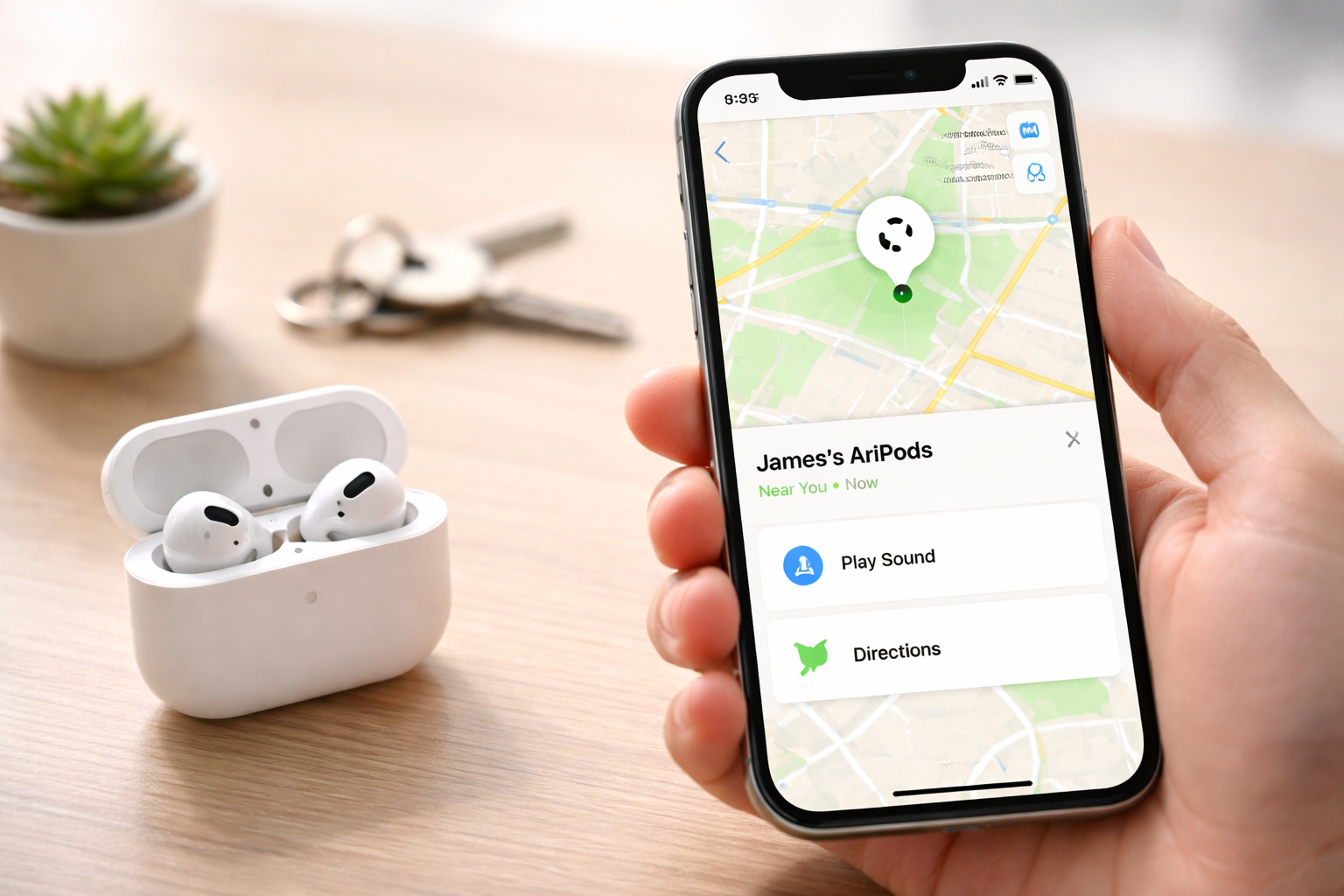
Open the Find My app on your iPhone → tap Devices → select your AirPods. You’ll see their current or last known location on a map. If they’re nearby, tap Play Sound. If you have supported models (like AirPods Pro 2), use Precision Finding for arrow-and-distance directions.
Before You Start: Make Sure Find My Can Actually Track Your AirPods
Most “Find My AirPods not working” situations come down to one of these: Find My wasn’t enabled, the AirPods were never paired to that Apple ID, or the battery is dead.
Prerequisites (takes 30 seconds to check)
- You must be signed into the same Apple ID on the iPhone you’re using.
- Your AirPods must have been paired to your Apple ID in the past.
- Find My iPhone should be enabled: Settings → [Your Name] → Find My → Find My iPhone ON.
- If available, enable Find My network / Offline Finding (this helps when they’re not connected).
If you’re reading this after they’re already missing: don’t worry—if they were paired before, you can still try everything below.
Step-by-Step: Find Lost AirPods Using the Find My App (iPhone)
Step 1: Open Find My and select your AirPods
On your iPhone:
- Open Find My
- Tap Devices
- Tap your AirPods (they’ll show as “AirPods,” “AirPods Pro,” “AirPods Max,” or whatever you named them)
From here, what you do next depends on what you see:
- They show a location on the map → go to Step 2 or Step 3.
- They show “No location found” / “Offline” → skip to the Offline section below (there’s still hope).
Step 2: If they’re far away, use “Directions” to go to the last location
If your AirPods are not within Bluetooth range, Find My will typically show a current or last known location. Tap Directions to open Apple Maps and navigate there.
Pro tip: The “last seen” spot is often where the AirPods disconnected from your phone—not always where they ended up. That still helps a lot (parking lots, gyms, offices, airports… all classic AirPods disappearance zones).
Step 3: If they’re nearby, use “Play Sound” (best indoor lost AirPods fix)
If you suspect they’re in your house, car, bag, or office, Play Sound is usually the fastest win.
- In Find My → your AirPods → tap Play Sound
- Listen for the chirping/beeping
Important limitations:
- Sound works only if the AirPods have battery and are within Bluetooth range.
- If they’re in the case and the lid is closed, sound behavior depends on model.
Real-life trick: Mute the room. Turn off fans/TV/music, and walk slowly while the sound plays. Check soft surfaces first (sofas, beds, laundry piles). AirPods love fabric.
Use Precision Finding (If Your AirPods Support It)
If you have a compatible model, this is the “how are we living in the future?” feature. Instead of guessing, your iPhone guides you with an arrow + distance so you can literally walk toward your AirPods.
What models support Precision Finding?
- AirPods Pro (2nd generation) and newer supported variants
- AirPods 4 (ANC)
- AirPods Max (supports map/sound; Precision features depend on version/firmware ecosystem support)
When available, you’ll see Find Nearby or Precision Finding inside Find My.
How to use Precision Finding
- Open Find My → Devices → AirPods
- Tap Find Nearby (or similar)
- Follow the on-screen arrow and distance prompts
This is especially useful when they’re:
- Under a car seat
- In couch cracks
- In a backpack pocket you swear you checked
- Somewhere in an office where “Play Sound” is hard to hear
How to Locate AirPods If They’re Offline (or Dead)
Seeing “Offline” feels like a dead end. It isn’t—just a different strategy.
What “Offline” really means
- Your AirPods aren’t currently connected to your iPhone.
- They might be out of range, in the case, or out of battery.
- Find My may still show a last known location.
What to do next (in order)
- Check the last location in Find My and go there (don’t overthink it).
- Enable notifications so your iPhone alerts you when they’re seen again by the Find My network (supported models can report location for up to about 24 hours after disconnect).
- Turn on Lost Mode (more on that next).
Hard truth: If your AirPods battery is fully dead and they haven’t been “seen” by the Find My network, you may only have the last location to work with.
Turn On Lost Mode (This Is the Move If You Think They’re Truly Lost)
If your AirPods are missing outside your home—ride-share, hotel, gym, campus—enable Lost Mode immediately. It’s one of the best “set it and forget it” options to recover them before someone else keeps them.
How to enable Lost Mode for AirPods
- Open Find My → Devices → select AirPods
- Swipe up (or scroll) to find Lost Mode
- Tap Enable
- Add a phone number or email where someone can reach you
If a good human finds them, your contact info gives them a simple way to return them. And you’ll also get alerts when the AirPods pop back online.
Lost One AirPod Only? Here’s How to Find the Left or Right Bud
This is more common than losing both. One falls out, one stays in the case, and suddenly Find My feels confusing.
How to find a single missing AirPod
- Open Find My → Devices → AirPods
- If your model supports it, you’ll be able to select Left or Right
- Use Play Sound on the missing bud
Helpful trick: After you find one bud, put it in the case, then refresh Find My. Sometimes the app updates and makes it easier to locate AirPods for the remaining bud.
Can You Find the AirPods Case Separately?
Sometimes the buds are safe… and the case is the thing that vanished. Whether you can track the case depends on the model.
Case tracking: which models work best?
- AirPods Pro 2: Best case tracking experience (case can be located; precision features apply in many setups)
- AirPods 4 (ANC): Improved tracking options
- Older models: case tracking is limited or may require specific conditions (like having a bud inside)
Note: In some cases, the case’s location updates best when at least one AirPod is inside (and the hardware supports it).
Find My AirPods Not Working? Common Fixes That Actually Help
If you’re stuck in the classic loop—no sound, no updated location, nothing loading—try these quick fixes.
Lost AirPods fix checklist
- Refresh Find My: close the app and reopen it (or pull down to refresh).
- Check Apple ID: make sure you’re signed into the right account.
- Confirm Bluetooth is on: Settings → Bluetooth.
- Update iOS: older iOS versions can be glitchy with newer Find My features.
- Check battery expectations: if they’re dead, Play Sound and Precision Finding won’t work.
If you suspect they’re nearby but “Offline,” walk around the house/area with Find My open. If the AirPods wake up (case opened, moved, or charged), they can suddenly become trackable again.
Alternative Ways to Track AirPods (If Your iPhone Isn’t Available)
Your iPhone is easiest, but it’s not the only option.
Other devices you can use
- iPad (Find My app)
- Mac (Find My app)
- Apple Watch (Find Devices / Find Items depending on setup)
- iCloud.com/find (useful in a pinch, but can have limited features compared to iPhone)
The key requirement is the same: the AirPods must be linked to your Apple ID already.
Which AirPods Are Easiest to Find If You Lose Them a Lot? (Buyer Comparison)
If you’re on your second “lost AirPods” scare this year, it might be time to choose a model that fights back. Recovery features aren’t equal across the lineup—and if you value tracking, it’s worth buying the model that makes it easiest to recover.
Best for tracking: AirPods Pro 2
- Why it’s best: Precision Finding + better case tracking + Find My features feel “complete.”
- Ideal for: commuters, travelers, gym-goers, students, anyone who misplaces things daily.
- Downside: higher price, but replacing a single bud or case isn’t cheap either.
If you want the simplest “find lost AirPods” experience, this is the upgrade that actually changes your life.
Best value with strong tracking: AirPods 4 (ANC)
- Why it’s great: modern Find My features without Pro-level pricing.
- Ideal for: people who want better tracking + ANC at a lower cost.
- Downside: still not the exact same package as Pro 2 in every scenario.
Good but basic: AirPods 3
- Why people buy it: solid everyday AirPods experience.
- Tracking reality: Find My works, but you may not get the same “arrow-guided” help as the newest models.
- Ideal for: budget-conscious buyers who don’t lose them often.
Over-ear option: AirPods Max
- Why it’s interesting: bigger headphones are often harder to misplace, and Find My features still help.
- Ideal for: home/office listeners who want premium sound and less chance of losing a tiny earbud.
- Downside: expensive and less “grab-and-go” than buds.
Replacement Options If You Can’t Recover Them (And How to Spend Less Next Time)
If you’ve done everything—map, sound, directions, Lost Mode—and they’re gone, don’t panic-buy a whole new set right away.
Check official replacement pricing first
- Apple typically offers single bud replacements (often around $69–$89 depending on model).
- Charging case replacements can run roughly $89–$99 depending on model.
Commercial tip (worth it): If you’re even slightly prone to losing them, consider grabbing a protective AirPods case once you recover them. The right case adds grip, visibility, and usually a better routine (you put them in the same place every time). For travel, a case with a keychain clip is a game-changer.
If you’re upgrading anyway: AirPods Pro 2 is the easiest model to recover thanks to Precision Finding. If you’ve ever lost AirPods in a parking lot, you already know why that matters.
Buyer Guidance: What to Do Right Now (Based on Your Situation)
If you lost them in your house
- Use Play Sound
- If supported, use Precision Finding
- Search soft surfaces and “in-between” spots first
If you lost them outside (gym, office, hotel, ride-share)
- Check last known location and go there
- Enable Lost Mode immediately
- Turn on notify when found
If Find My says “No location found”
- Assume they’re offline or dead
- Use last location + Lost Mode
- Be quick—recovery odds drop as battery time passes
If you frequently lose them
- Consider upgrading to AirPods Pro 2 (best Find My + Precision Finding experience)
- Use a high-visibility protective case and a consistent storage habit
FAQs About Finding Lost AirPods
How do I find lost AirPods with my iPhone?
Open Find My → tap Devices → select your AirPods. Use the map to see their location, tap Play Sound if they’re nearby, or tap Directions to navigate to the last known location.
Can I locate AirPods case separately?
Yes—case tracking works best on newer models like AirPods Pro 2 and AirPods 4 (ANC). Depending on the situation, it may help if at least one bud is inside the case for the location to update reliably.
What if Find My AirPods says “No location found”?
That usually means the AirPods are offline (out of range, in a closed case, or out of battery). Check the last known location, turn on Lost Mode, and enable notify when found so you get an alert when they’re seen again.
Does Precision Finding work on all AirPods?
No. Precision Finding is available only on certain models (notably AirPods Pro 2 and newer supported devices). If you don’t see “Find Nearby,” your AirPods likely don’t support it.
Can I play a sound if my AirPods are offline?
No. Play Sound requires the AirPods to have battery and be within a connection range where they can receive the command.
Can I track AirPods from iCloud.com?
Yes. Go to iCloud.com/find and sign in with your Apple ID. You can select your AirPods and view location details, though features can be more limited than using Find My on an iPhone.
What if I lost one AirPod only?
In Find My, select your AirPods and (if supported) choose the left or right bud. Use Play Sound to find the missing one, then refresh and repeat if needed.
How do I enable Find My for AirPods?
Pair the AirPods with your iPhone while signed into your Apple ID. Then ensure Find My iPhone is enabled: Settings → [Your Name] → Find My → Find My iPhone ON (and enable offline finding if available).
Conclusion: Recover Them Now, Then Make Sure This Doesn’t Happen Again
To find lost AirPods using your iPhone, the winning combo is simple: Find My for location, Play Sound for nearby searches, Precision Finding for supported models, and Lost Mode when they’re truly missing.
If you’re searching right now, do this next: open Find My, check the map, and turn on Lost Mode before the battery dies. If you recover them (fingers crossed), consider a protective case or—if you’re constantly misplacing them—an upgrade to AirPods Pro 2 for the best tracking experience Apple offers.
CTA: If you want the easiest time locating AirPods in the future, check current pricing on AirPods Pro 2 (Precision Finding is the difference-maker). And once you’ve got your pair back, grab a grippy protective case so this is the last time you have to run the “lost AirPods fix” routine.