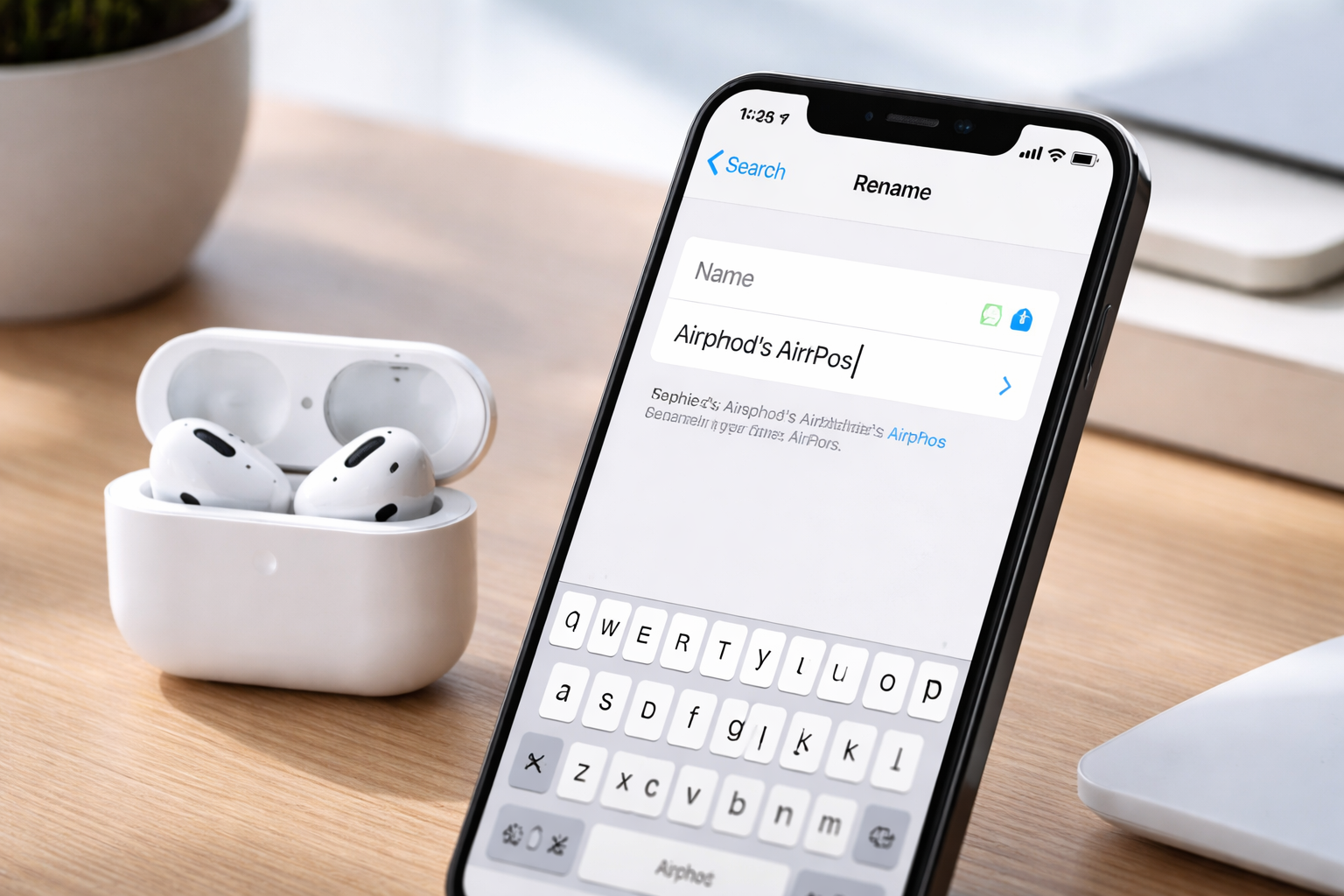
How to Rename Your AirPods on iPhone Easily (So You Never Mix Them Up Again)
If you’ve ever opened Bluetooth on your iPhone and seen three identical “AirPods” entries (yours, your partner’s, and somehow your old pair from 2021), you already know the struggle.
The good news: you can rename AirPods in under a minute—and once you do, the new name usually syncs across your Apple devices automatically. Even better, a custom name makes it easier to connect the right pair, troubleshoot faster, and avoid awkward “Wait… are these mine?” moments.
Below is the simplest step-by-step method, plus quick alternatives for iPad/Mac, the weird “AirPods” naming bug, and what to do if your AirPods name change won’t stick.
Quick Answer: How to Rename AirPods on iPhone
Connect your AirPods to your iPhone, then go to Settings > Bluetooth. Tap the (i) next to your AirPods, tap Name, type a new name, and tap Done. Your new name typically syncs to other Apple devices on the same Apple Account.
How to Rename AirPods on iPhone (Step-by-Step)
This is the most reliable method for an AirPods name change on iPhone. It works for AirPods, AirPods Pro, and AirPods Max.
1) Make sure your AirPods are connected
- Put them in your ears or open the case near your iPhone.
- Confirm they’re connected: swipe into Control Center and long-press the audio card, or check Bluetooth.
2) Open iPhone AirPods settings in Bluetooth
- Go to Settings > Bluetooth.
- Find your AirPods in the list.
- Tap the (i) icon next to them.
3) Rename AirPods
- Tap Name (or tap the current name field).
- Type your new name.
- Tap Done on the keyboard.
Tip: After renaming, close the AirPods case and reopen it near your iPhone. You’ll usually see the updated name pop up right away.
Alternate Method: Rename AirPods from the Main Settings Screen (iPhone/iPad)
On many iPhones/iPads, Apple also surfaces your AirPods settings more directly.
- Connect your AirPods.
- Open Settings.
- Tap your AirPods name near the top (it may appear under your Apple Account banner).
- Tap Name and edit it.
If you don’t see your AirPods listed near the top of Settings, use the Bluetooth method above—it works almost every time.
Will the Renamed AirPods Name Sync Across All Apple Devices?
Usually, yes. If you’re signed into the same Apple Account on your iPhone, iPad, Mac (and Apple Watch), your renamed AirPods name should update across those devices automatically.
Two things that commonly stop syncing:
- You’re using different Apple Accounts on different devices.
- The AirPods weren’t connected when you renamed them (or they didn’t save the change properly).
How to Rename AirPods on Mac (Fastest Way)
If you’re on a Mac and want to customize AirPods without grabbing your phone:
- Connect your AirPods to your Mac.
- Go to System Settings.
- Click your AirPods in the sidebar (or within Bluetooth/devices list depending on macOS version).
- Edit the Name field and save/confirm.
Once changed, the updated name should reflect back to your iPhone too—again, as long as everything is on the same Apple Account.
The Known “AirPods” Naming Bug (And the Simple Fix)
This sounds silly, but it’s real: trying to name your earbuds exactly “AirPods” can cause a glitch where the name doesn’t stick or behaves oddly.
Fix options that work:
- Name them “AirPods ” (yes, with a space at the end).
- Or pick a slightly different name like “My AirPods” or “AirPods (Personal)”.
It’s not you. It’s just one of those Apple quirks that shows up most when multiple pairs have been connected.
Best Naming Ideas (Practical, Not Cringey)
If your goal is “never connect to the wrong pair again,” choose names that instantly tell you whose they are or what they’re for:
- “Jessica’s AirPods” (classic and clear)
- “Work AirPods” (great if you carry two pairs)
- “Gym AirPods” (easy to spot when sweaty hands are fumbling with Bluetooth)
- “AirPods #2” (simple if you rotate pairs)
- “Studio AirPods Pro” (helpful when you have multiple Apple audio devices)
Small pro move: If your household has multiple pairs, agree on a consistent format like “Name + Model,” e.g., “Sam – AirPods Pro”.
Troubleshooting: If Your AirPods Name Change Won’t Save
If you tried to rename AirPods and it keeps reverting (or doesn’t show up on other devices), these fixes usually solve it quickly.
1) Reconnect and try again
- Put AirPods in the case.
- Wait 10 seconds.
- Open the case near your iPhone and connect.
- Rename again via Settings > Bluetooth > (i).
2) Toggle Bluetooth off/on
- Go to Settings > Bluetooth.
- Turn Bluetooth off, wait 5 seconds, turn it back on.
- Retry the rename.
3) Avoid reserved/confusing names
- Don’t use exactly “AirPods” (use “My AirPods” or add a space).
- Keep it short and unique if you have multiple saved devices.
4) If syncing is the problem (not renaming)
- Check you’re signed into the same Apple Account on all devices.
- Connect the AirPods to each device once after renaming (sometimes that “nudges” the update).
If nothing works, the next step is usually to “Forget This Device” and re-pair—but only do that if you’re okay re-connecting everywhere.
AirPods Models: Does Renaming Work Differently on AirPods Pro or AirPods Max?
Nope. The process is basically identical across the lineup. Whether you’re using standard AirPods, AirPods Pro, or AirPods Max, you’ll find the rename option in the same iPhone AirPods settings area.
That said, people with AirPods Pro often rename more frequently because they use multiple listening “modes” (work, travel, gym) and want their Bluetooth list to stay organized.
Quick Product Picks (If You’re in “Upgrade Mode”)
If you ended up here while customizing AirPods and you’re thinking, “Maybe I should finally upgrade,” here’s the simple cheat sheet:
AirPods (standard) — best for everyday convenience
- Pros: easy, lightweight, great for calls and casual listening
- Cons: less noise control than Pro models
- Best for: commuting, office calls, general use
AirPods Pro — best all-around choice for most people
- Pros: better fit options, strong noise control, more “premium” listening experience
- Cons: costs more (but feels like a real upgrade)
- Best for: travel, focusing, gym sessions, noisy environments
Don’t sleep on accessories
If your main goal is personalization, a good case does more than look nice—it makes your AirPods easier to spot and harder to drop. If you want, add an affiliate link here to a best-selling protective case or a keychain case (those pay surprisingly well).
FAQs: Rename AirPods, AirPods Name Change, and iPhone AirPods Settings
How do I rename my AirPods on iPhone?
Connect your AirPods, go to Settings > Bluetooth, tap the (i) next to your AirPods, tap Name, type the new name, then tap Done.
Will my renamed AirPods name appear on all my Apple devices?
Yes—if you’re signed into the same Apple Account, the name typically syncs across iPhone, iPad, Mac, and Apple Watch.
Can I rename my AirPods Pro the same way as regular AirPods?
Yes. The steps are the same for AirPods, AirPods Pro, and AirPods Max.
Why can’t I name them exactly “AirPods”?
There’s a known bug with the exact name “AirPods.” Try “AirPods ” (with a trailing space) or a unique name like “My AirPods.”
Do my AirPods need to be in my ears to rename them?
Not necessarily. They just need to be connected—wearing them works, or opening the case near your iPhone often works too.
Can I use special characters or emojis when I customize AirPods?
Most standard characters (letters, numbers, spaces) work fine. Emoji support can be inconsistent depending on device/software—if the name won’t save, remove emojis and try again.
If I rename my AirPods, will other people see the new name?
Typically, the name is mainly visible in your Bluetooth list and on your Apple Account devices. Others generally won’t see it unless they’re using your Apple Account or your device.
How do I rename my AirPods on Mac?
Connect them, go to System Settings, select your AirPods, and edit the name field.
Conclusion: Rename Once, Save Yourself Daily Annoyance
Renaming is one of those tiny tweaks that pays off every single day. If you rename AirPods to something unique, you’ll connect faster, avoid mix-ups, and keep your iPhone AirPods settings list clean—especially if you’ve got multiple pairs in the house.
Next step: If you’re upgrading soon, consider going with AirPods Pro for the best all-around experience—or grab a standout protective case so your newly named AirPods are instantly recognizable. Add your preferred affiliate links right below this paragraph to capture that “ready to buy” moment.