10 AirPods Hidden Features Every iPhone User Should Know (2026 Update)
If you use AirPods every day, there’s a good chance you’re only using about half of what they can actually do. Seriously. Apple has packed in a bunch of AirPods hidden features that are incredibly useful—yet they’re buried in Accessibility menus, tucked behind long-press gestures, or only show up after iOS updates.
The problem? Most people never turn these on… then assume they need “better earbuds” when what they really need is a 2-minute settings tweak.
So here’s the promise: by the end of this guide, you’ll have 10 practical features enabled (or at least understood), you’ll know which ones require AirPods Pro, and you’ll be able to decide whether your current model is worth keeping—or if upgrading actually makes sense.
Quick answer (featured snippet): The most useful AirPods hidden features
The most useful AirPods hidden features for iPhone users are Live Listen (turn your iPhone into a remote microphone), Headphone Accommodations (custom sound tuning), Audio Sharing (two people, one iPhone), and Noise Control shortcuts on AirPods Pro (ANC/Transparency without opening Settings). If you have AirPods Pro, run the Ear Tip Fit Test—it can noticeably improve noise cancellation.
Before you start: check your AirPods model (it matters)
A lot of the best “hidden” stuff works on every model, but a few game-changers are Pro-only—and iOS 26 adds new tricks that older guides don’t mention.
- AirPods 3: great everyday features, but no ANC/Adaptive modes
- AirPods Pro 2: strong value—ANC, Adaptive Transparency, Spatial Audio personalization
- AirPods Pro 3: newest model—best for iOS 26 features like Live Translation (where supported)
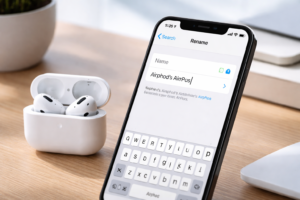
Tip: Go to Settings → Bluetooth → tap the “i” next to your AirPods. Your model and feature menus will show there.
1) Customize your AirPods controls (skip tracks, Siri, noise control, and more)
This is one of those “how did I not set this up years ago?” features. Depending on your model, you can customize double-tap actions (older models) or press-and-hold stem actions (Pro models) for things you actually do daily.
Why it’s worth using
- Fewer phone grabs while walking, commuting, cooking
- Faster control over ANC/Transparency on Pro models
- Lets you tailor each earbud for different actions
How to enable / change controls
- Put AirPods in your ears
- Open Settings → Bluetooth
- Tap the “i” next to your AirPods
- Look for Press and Hold AirPods (Pro) or Left/Right tap controls (if available)
Real-life setup that works: left stem press-and-hold = Noise Control, right stem press-and-hold = Siri. It keeps your “sound modes” and “voice commands” separate so you don’t mis-trigger things.
2) Use Head Gestures to accept/decline calls hands-free (AirPods Pro)
If you’ve ever had your hands full—groceries, suitcase, dog leash—this one feels like magic. With Head Gestures on supported AirPods Pro models, you can:
- Nod to accept a call
- Shake your head to decline
How to turn on Head Gestures
- Settings → Bluetooth → “i” next to AirPods Pro
- Find Head Gestures
- Toggle on and follow the quick prompt
Small but important: If it feels inconsistent, redo the setup in a calmer environment (less movement/noise), and make slightly more deliberate nods at first until you get used to the detection.
3) Turn your iPhone into a remote microphone with Live Listen (all AirPods models)
Live Listen is one of the most genuinely useful iPhone AirPods features—and it’s still weirdly underused. It streams audio from your iPhone’s microphone directly to your AirPods.
When it’s actually useful
- Hearing someone speaking in a meeting/classroom (from a respectful distance)
- Monitoring a sleeping baby from the next room (within range)
- Hearing a TV better without blasting the volume
Reality check: range is limited by Bluetooth/wireless conditions—often around 30–40 feet in open space, less through walls.
How to enable Live Listen
- Go to Settings → Control Center
- Add Hearing (ear icon)
- Put in AirPods, open Control Center → tap Hearing
- Tap Live Listen
Privacy note: Use responsibly. You’re intentionally amplifying audio—be mindful of consent and local laws, especially in public settings.
4) Instantly switch between Noise Cancellation, Transparency, and Adaptive modes (AirPods Pro)
Most people switch sound modes by opening Settings or Control Center. You don’t have to. On AirPods Pro, a simple stem press-and-hold lets you cycle noise modes instantly.
Why this is one of the best AirPods tricks
- Walk into a loud cafe → ANC on
- Cross a street → Transparency on
- Move between environments → Adaptive mode (if available) helps balance it
How to set the press-and-hold behavior
- Settings → Bluetooth → “i” next to AirPods Pro
- Under Press and Hold AirPods, choose Noise Control
- Select which modes are included in the toggle
Pro tip: Include only the modes you use. If you never use “Off,” remove it so your toggle becomes faster.
5) Personalized Spatial Audio (AirPods Pro 2+): custom 3D sound tuned to your ears
Spatial Audio can be impressive—or it can feel “off.” Personalized Spatial Audio helps a lot because it maps your ear shape using the iPhone’s camera (TrueDepth on supported models).
What you get
- More natural “3D” placement of voices and instruments
- Better immersion for movies and compatible music
- Options for head-tracking behavior (depending on iOS/version)
How to set it up
- Wear your AirPods Pro
- Go to Settings → Bluetooth → “i”
- Find Personalized Spatial Audio and follow prompts
If Spatial Audio ever feels dizzying: try turning off head tracking and keeping it “fixed” (the exact wording may vary by iOS version). A lot of people love Spatial Audio once it stops “moving” with every head turn.
6) Run the Ear Tip Fit Test / Acoustic Seal Test (AirPods Pro): easy upgrade in sound + ANC
If you have AirPods Pro and you’ve never done the fit test, you’re leaving performance on the table. A proper seal is everything for bass response and noise cancellation.
Why it matters
- Better seal = better ANC and better sound
- Fixes “ANC feels weak” complaints surprisingly often
- Helps you choose the correct ear tip size (yes, it can differ by ear)
How to run the test
- Settings → Bluetooth → “i” next to AirPods Pro
- Tap Ear Tip Fit Test (or Acoustic Seal Test on newer models)
- Follow the steps and swap tips if needed
Quick fix: If one ear fails, try a larger tip on that side only. Plenty of people wear different sizes left vs right.
7) Background Sounds: built-in “rain / ocean / noise” for focus and sleep (all models)
This one is technically an accessibility feature, but it’s become a daily-driver tool for a lot of iPhone owners. You can play ambient noise through your AirPods to mask distractions—without installing a third-party app.
When it shines
- Open-office focus sessions
- Sleep routines (especially if you’re sensitive to small noises)
- Calming background sound while reading or traveling
How to enable Background Sounds
- Go to Settings → Accessibility → Audio/Visual
- Tap Background Sounds
- Choose a sound (rain, ocean, stream, etc.) and adjust volume
Nice detail: You can often set it to keep playing while other audio plays, so you can layer it under podcasts or music at a low level.
8) Live Translation (iOS 26+): real-time conversation help (AirPods Pro, newest support)
One of the biggest iOS 26 additions is Live Translation support with AirPods Pro (availability depends on model, iOS version, language pair, and region). When it’s supported, it can translate parts of a conversation in near real time.
Who it’s for
- Travelers who want quick, lightweight help without constantly staring at their phone
- International students or professionals in multilingual environments
- Anyone who wants “good enough” translation for everyday interactions
How it typically activates (when supported)
- Update to iOS 26+
- Confirm your AirPods Pro firmware is up to date
- Use the supported gesture (commonly a stem press-and-hold on both AirPods) when prompted in iOS
Important: Translation features are improving fast, but they’re not perfect. For medical/legal situations, use a professional translator when it matters.
Upgrade hint: If Live Translation is the feature you’re most excited about, it’s one of the clearest reasons to consider the newest Pro model. Older AirPods may not support it even if your iPhone does.
9) Headphone Accommodations: “hidden EQ” that can make your AirPods sound way better (all models)
This is one of the best AirPods tips for people who think their AirPods sound “thin,” “too sharp,” or just fatiguing. Headphone Accommodations lets you tune audio to your hearing preferences beyond the standard Music EQ presets.
What it improves
- Clarity for voices (podcasts, calls)
- Reduces harsh highs for sensitive ears
- More balanced sound at lower volumes
How to turn it on
- Settings → Accessibility → Audio/Visual
- Tap Headphone Accommodations
- Toggle it on, then run the setup (and fine-tune)
Quick win: If you mainly listen to spoken word (YouTube, podcasts, audiobooks), tune for vocal clarity. It can make AirPods feel like an upgrade without spending a dime.
10) Audio Sharing: share what you’re listening to with a second pair of AirPods (all models)
Audio Sharing is ridiculously convenient: two people can listen to the same audio from one iPhone (or iPad) using their own AirPods (or some Beats models). No splitter, no awkward one-earbud sharing.
Best use cases
- Watching a movie on a flight together
- Sharing a podcast on a walk without blasting speakers
- Late-night listening without waking anyone up
How to use Audio Sharing
- Connect your AirPods to your iPhone
- Bring the second pair close (in the case, lid open)
- Open Control Center → AirPlay (audio output)
- Select Share Audio and follow prompts
Tip for couples/friends: You can often adjust volume for each set of earbuds separately—so nobody has to suffer through “too loud” or “too quiet.”
Bonus “fixes” most people miss (these solve annoying AirPods problems)
Disable Automatic Ear Detection (if your audio keeps pausing)
If your AirPods randomly pause while you’re chewing, adjusting, or moving around, Automatic Ear Detection may be misfiring.
- Settings → Bluetooth → “i” next to AirPods
- Toggle off Automatic Ear Detection
Use AirPods as a simple camera remote (AirPods Pro on supported setups)
On supported AirPods Pro setups, you can trigger the camera with a stem gesture (varies by model/iOS). It’s perfect for group shots—no awkward sprint back into frame.
- Open the Camera app
- Use the supported AirPods Pro gesture if available on your iOS version
If your phone doesn’t show the option, don’t panic—this is one of those features that can be model/iOS-dependent.
AirPods hidden features by model: what you’re missing (and whether it’s worth upgrading)
If you’re reading this with AirPods 3 and thinking, “Okay… but I want the cool stuff,” here’s the clean way to look at it: you’re not missing everything—just the features tied to active noise control and advanced sensors.
| Feature | AirPods 3 | AirPods Pro 2 | AirPods Pro 3 |
|---|---|---|---|
| Customizable Controls | Yes | Yes | Yes |
| Live Listen | Yes | Yes | Yes |
| Audio Sharing | Yes | Yes | Yes |
| Background Sounds | Yes | Yes | Yes |
| Headphone Accommodations | Yes | Yes | Yes |
| Active Noise Cancellation (ANC) | No | Yes | Yes |
| Adaptive Transparency / Adaptive modes | No | Yes | Yes |
| Head Gestures | No | Yes | Yes |
| Personalized Spatial Audio | No | Yes | Yes |
| Ear Tip Fit / Acoustic Seal Test | No | Yes | Yes |
| Live Translation (iOS 26+ support) | No | Depends | Yes (where available) |
So… should you upgrade?
- Keep AirPods 3 if you mainly want convenience features (sharing, Live Listen, better audio tuning) and you don’t mind background noise.
- Upgrade to AirPods Pro 2 if you commute, fly, work in noisy spaces, or take calls in busy environments. ANC + fit test alone can feel like a totally different product.
- Consider AirPods Pro 3 if you want the newest iOS 26 feature set (like Live Translation where supported) and you like having the latest controls and seal testing improvements.
My practical take: If you’ve never owned ANC earbuds, AirPods Pro is the upgrade you’ll feel on day one. If you already have Pro 2 and you’re happy, Pro 3 is mostly a “new features + newest ecosystem tricks” decision.
Best pick by use-case (fast decision guide)
If you travel a lot
Pick: AirPods Pro (at least Pro 2). ANC + Adaptive Transparency is the difference between “exhausting airport noise” and “I can breathe.”
If you work in an office (or take calls all day)
Pick: AirPods Pro. Use Head Gestures, Live Listen for specific scenarios, and Headphone Accommodations to reduce fatigue.
If you’re on a budget but want Apple ecosystem features
Pick: AirPods 3. You’ll still get a surprising number of iPhone AirPods features like Audio Sharing, Live Listen, and Background Sounds.
If you want the “latest iOS 26 tricks”
Pick: AirPods Pro 3 (especially for features like Live Translation where supported).
Recommended products (worth clicking if you’re comparing)
If reading through these features made you realize your current AirPods are missing the ones you’d actually use, here are the most sensible upgrade paths.
- AirPods Pro 2 — best overall value for ANC + Pro-only features. Check today’s price for AirPods Pro 2
- AirPods Pro 3 — best for iOS 26 feature support and the newest controls. See AirPods Pro 3 deals and availability
- AirPods 3 — best budget Apple option if you don’t need ANC. Compare AirPods 3 pricing
Quick accessory tip: If you’re upgrading (or even keeping what you have), a good case with a grippy exterior and a cleaning kit can make your AirPods feel “new” again. See top-rated AirPods case + cleaning kits
FAQs: AirPods hidden features (quick, practical answers)
What are the most useful hidden AirPods features I’m probably not using?
The top underused features are Live Listen, Headphone Accommodations, and Audio Sharing. If you have AirPods Pro, Head Gestures and the Ear Tip Fit Test are the fastest “wow” upgrades.
Do all AirPods models have the same hidden features?
No. Features like Live Listen, Audio Sharing, Background Sounds, and Headphone Accommodations work on most models. Pro-only features include ANC, Adaptive Transparency, Head Gestures, and Ear Tip Fit/Acoustic Seal tests.
How do I enable head gestures on AirPods Pro?
Go to Settings → Bluetooth → tap the “i” next to AirPods Pro → Head Gestures, then toggle it on and follow the setup prompts.
Can I use Live Listen to monitor a baby or child?
Yes, within wireless range. Place your iPhone near the crib and listen through your AirPods in the next room. Keep in mind Bluetooth range and interference (walls reduce distance), and use it as a convenience—not as a replacement for dedicated safety devices.
What’s the difference between Transparency Mode and Adaptive Transparency?
Transparency lets outside sound in so you can hear your surroundings. Adaptive Transparency (Pro models) adjusts louder environmental sounds more intelligently, helping reduce harsh noise while keeping useful sound audible.
How does the Ear Tip Fit Test improve performance?
It checks whether you have a proper seal. A better seal usually improves bass and makes noise cancellation feel stronger. If the test fails, changing ear tip size often fixes it immediately.
Can I use AirPods to control my iPhone camera?
On supported AirPods Pro + iOS combinations, yes—there are camera remote options that can be triggered by gestures while the Camera app is open. If you don’t see it, it may not be supported on your model/iOS version.
What is Live Translation and which AirPods support it?
Live Translation is an iOS 26+ feature that can enable real-time translation with supported AirPods Pro models (availability depends on model, region, and language support). AirPods Pro 3 is the safest bet for the newest translation features.
Conclusion: pick 2–3 features and turn them on today
You don’t need to enable every single setting to feel a difference. If you want the biggest immediate upgrade, do this:
- Turn on Live Listen in Control Center
- Set up Headphone Accommodations
- If you have AirPods Pro, run the Ear Tip Fit/Acoustic Seal Test and customize your Noise Control toggle
And if you discovered you’re missing the Pro-only features you’d actually use (ANC, Adaptive Transparency, Head Gestures, iOS 26 extras), upgrading isn’t just “new headphones”—it’s a quality-of-life upgrade you’ll notice daily.
Ready to compare? Check the latest AirPods Pro deals here (prices change often, and the best discounts don’t always last).