How to Connect Apple AirPods to iPhone (Step-by-Step Guide)
If you’ve ever opened a brand-new pair of AirPods and thought, “Okay… now what?” you’re not alone. Most of the time, Apple makes it almost magically easy to connect AirPods to iPhone—but when the pop-up doesn’t appear (or you’re pairing a used set), it can feel weirdly frustrating.
This guide walks you through the fastest way to connect, plus the “no animation” fixes, model-specific pairing (including newer AirPods 4 behavior), and the few settings you should change right after you’re connected.
Quick Answer: How to Connect AirPods to iPhone (Fastest Method)
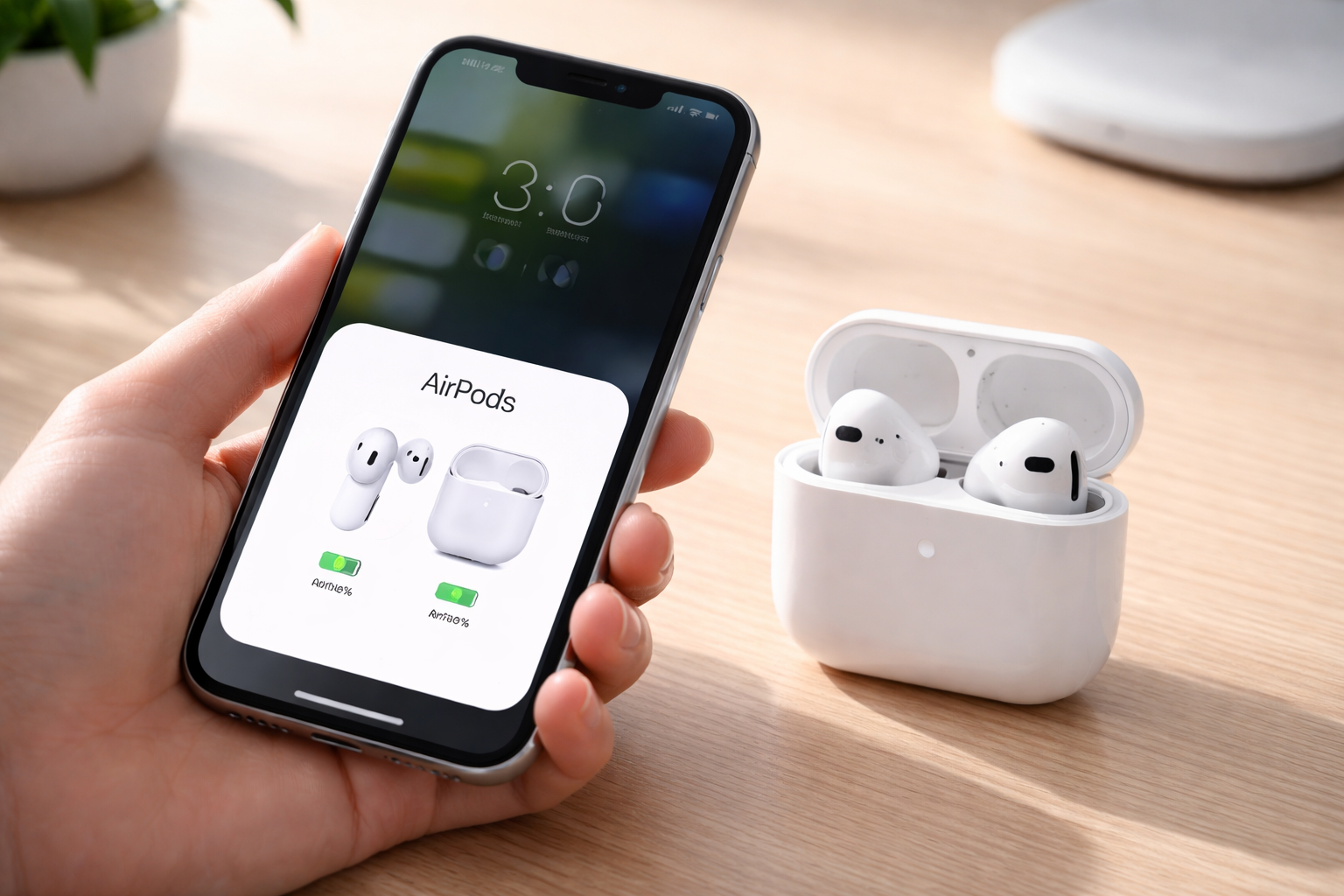
To connect AirPods to iPhone, turn on Bluetooth, then open your AirPods case next to your unlocked iPhone (Home Screen). Tap Connect on the setup animation and follow the prompts.
If the animation doesn’t show up, put AirPods in pairing mode (white flashing light) and pair them in Settings > Bluetooth.
Before You Start (30-Second Checklist)
Most connection issues happen because of one simple thing. Check these first:
- Bluetooth is on: Settings > Bluetooth > toggle ON
- iPhone is unlocked and on the Home Screen
- AirPods have battery: charge the case for 10–15 minutes if unsure
- Keep them close: within a few inches of your iPhone
Step-by-Step: Connect New AirPods to iPhone (Automatic Setup)
This is the “Apple magic” method and it works for most new AirPods models.
Step 1: Turn on Bluetooth on your iPhone
Go to Settings > Bluetooth and make sure it’s ON.
Step 2: Open the AirPods case near your iPhone
Keep your iPhone unlocked on the Home Screen. Open the AirPods case lid (leave the AirPods inside).
Step 3: Tap “Connect” on the setup animation
You should see a pop-up animation. Tap Connect.
Step 4: Follow the prompts (Siri + noise control)
Depending on your model (AirPods 4, Pro, Max), you may see extra prompts for:
- Siri (hands-free “Hey Siri”/Siri settings)
- Noise Control (Active Noise Cancellation / Transparency)
- Spatial Audio (if your model supports it)
Step 5: Confirm connection
Once connected, you’ll see a confirmation screen and often the battery levels for the buds + case.
Tip: After the first successful AirPods setup, they also sync via iCloud to other Apple devices signed into the same Apple ID (so you usually don’t have to pair them again).
How to Pair AirPods Manually (Used AirPods or No Pop-Up)
If you bought AirPods second-hand, you’re switching to a new iPhone, or the setup animation refuses to appear, manual pairing is your best friend. This is also the method to use when you need to force Bluetooth AirPods pairing.
Step 1: Open Settings > Bluetooth
On your iPhone, go to Settings > Bluetooth and keep that screen open.
Step 2: Put AirPods into pairing mode (white flashing light)
Put both AirPods in the case and open the lid. Now trigger pairing mode based on your model:
- Most AirPods / AirPods Pro (common method): Press and hold the setup button on the back of the case until the light flashes white.
- Newer models with updated case controls (ex: AirPods 4 / newer generations): You may need to double-tap the front of the case to enter pairing mode (watch for the white flashing light).
If you’re not sure which you have, aim for the outcome: white flashing status light = pairing mode.
Step 3: Tap your AirPods under “Other Devices”
On the Bluetooth screen, look under Other Devices, then tap your AirPods name (for example: “AirPods,” “AirPods Pro,” or a custom name).
Step 4: Confirm “Pair” if prompted
Some setups ask you to confirm. Tap Pair or Connect.
Model-Specific Notes (AirPods 4, AirPods Pro, AirPods Max)
Apple keeps the experience consistent, but a few models behave slightly differently—especially around how you enter pairing mode.
AirPods 4 (both versions)
- Automatic setup still works: open the case near your iPhone and tap Connect.
- If you need manual pairing, use the case control method for pairing mode (look for the white flashing light). Some newer cases use a front double-tap action rather than the classic back button behavior.
AirPods Pro (noise cancellation models)
- Pairing is the same (automatic pop-up or manual Bluetooth pairing).
- After connecting, it’s worth checking your Noise Control settings (ANC/Transparency) right away so the stems do what you expect.
AirPods Max
- Take them out of the Smart Case (if they’re in it).
- Press and hold the Noise Control button until the light flashes white.
- Then pair from Settings > Bluetooth on your iPhone.
After You Connect: 5 Settings Worth Changing Immediately
Once you successfully connect AirPods to iPhone, you’re technically done—but these tweaks make them feel like your AirPods.
1) Rename your AirPods (helps if you own multiple pairs)
Go to Settings > Bluetooth and tap the “i” next to your AirPods > Name.
2) Customize controls (press-and-hold / taps)
In the same AirPods settings screen (tap the “i”):
- Adjust what press-and-hold does (Noise Control vs Siri)
- Configure tap actions (model-dependent)
3) Noise control: ANC vs Transparency (Pro/Max models)
If you have AirPods Pro or Max, set your default mode so you don’t feel “sealed off” when you’re walking outside—or distracted when you’re trying to focus.
4) Enable/adjust Spatial Audio (if supported)
Spatial Audio can be amazing for movies and certain playlists—but not everyone likes it for podcasts. Toggle it based on how you listen.
5) Check battery levels the easy way
- Open the case near your iPhone to see the battery pop-up
- Or go to Settings > Bluetooth and tap your AirPods to view status
Troubleshooting: If Your AirPods Won’t Connect to iPhone
If pairing works 95% of the time, you’re reading this during the other 5%. Here’s the order that fixes most problems quickly.
Fix #1: Make sure Bluetooth is actually enabled
Sounds obvious, but double-check: Settings > Bluetooth must be ON.
Fix #2: Charge both the case and the AirPods
A low case battery can cause flaky pairing. Charge for 10–15 minutes, then try again.
Fix #3: Force manual pairing mode (white flashing light)
Open the lid and force pairing mode using the case button (or the case front control on newer models). Then select them under Other Devices in Bluetooth settings.
Fix #4: “Forget This Device” and re-pair
If your iPhone shows the AirPods but won’t connect:
- Settings > Bluetooth
- Tap the “i” next to AirPods
- Tap Forget This Device
- Then pair again (automatic or manual)
Fix #5: Reset AirPods (best for stubborn connection bugs)
This is the “clean slate” method that solves most weird issues.
- Put AirPods in the case and close the lid for 10 seconds
- Open the lid
- Press and hold the setup button (or equivalent pairing control for your case) for about 15 seconds
- Watch for the light to change (typically amber then white)
- Now try pairing again near your iPhone
Fix #6: Restart your iPhone
If you’ve tried everything and the Bluetooth list is acting “stuck,” a quick restart often clears it.
Which AirPods Should You Buy? (Quick Comparison for iPhone Users)
If you’re reading this because you’re deciding between models (or you’re replacing an old pair), here’s the simple breakdown. All of these pair quickly with iPhone, but they’re not the same experience once you start using them daily.
AirPods 4 (best for most people)
- Best for: everyday listening, calls, commuting, casual workouts
- Why they’re worth it: solid sound, easy pairing, Apple ecosystem convenience at a lower price
- Potential downside: less “isolation” compared to Pro/Max if you need strong noise blocking
Deal-check tip: AirPods pricing moves a lot. If you want the easiest win, check today’s price on AirPods 4 and grab whichever version is discounted—setup takes under a minute once they arrive.
AirPods Pro 3 (best for noise cancellation + flexibility)
- Best for: frequent flyers, office focus, gym + street use (Transparency is a game-changer)
- Why they’re better: ANC + Transparency modes, more control options, premium “daily driver” feel
- Potential downside: higher price (but often worth it if you listen a lot)
AirPods Max 2 (best for over-ear comfort and immersion)
- Best for: long listening sessions, immersive audio, work-from-home calls, over-ear fans
- Why they’re worth it: big sound, strong ANC, premium build, iPhone integration
- Potential downside: pricey—shop sales and refurbished options if you want the best value
Buyer Guidance: Choose the Right Setup Path (So You Don’t Waste Time)
Use this quick decision guide:
- You just unboxed new AirPods: Use the automatic method (open case near iPhone, tap Connect).
- You bought used AirPods: Use manual Bluetooth pairing (white flashing light, then select in Settings).
- You switched iPhones but kept the same Apple ID: They often reconnect via iCloud, but manual pairing is fastest if they don’t.
- Your AirPods connect but audio is glitchy: “Forget This Device,” then reset and re-pair.
If you’re still shopping: for most iPhone users, AirPods 4 is the sweet spot. If you care about noise cancellation, AirPods Pro 3 usually feels like the upgrade you notice every single day.
FAQs: AirPods Setup and Pairing with iPhone
How do I connect new AirPods to iPhone?
Turn on Bluetooth, unlock your iPhone, open the AirPods case near it, then tap Connect on the setup animation and follow the prompts.
Why won’t my AirPods setup animation appear?
Usually it’s Bluetooth being off, low battery, or the AirPods not being in pairing mode. Turn Bluetooth on, charge the case, then manually pair via Settings > Bluetooth after triggering pairing mode (white flashing light).
How do I pair AirPods that were used by someone else?
Put them in the case, open the lid, enter pairing mode (white flashing light), then pair from Settings > Bluetooth. If they behave oddly, reset them (hold setup control ~15 seconds) and try again.
How do I pair AirPods 4 to iPhone?
Open the case near your unlocked iPhone and tap Connect. If needed, use the case pairing control method to get the light flashing white, then pair under Settings > Bluetooth.
How do I connect AirPods Pro to iPhone?
Same process: automatic setup pop-up or manual pairing through Bluetooth settings. After connecting, customize Noise Control and press-and-hold actions from the AirPods settings screen.
Do AirPods connect automatically after the first setup?
Yes. Once paired to one Apple device, they typically sync via iCloud and connect automatically to other devices signed into the same Apple ID.
How do I check AirPods battery on iPhone?
Open the AirPods case near your iPhone to see a battery pop-up, or check in Settings > Bluetooth by tapping the AirPods entry.
What if my AirPods won’t pair at all?
Try this order: charge them, toggle Bluetooth, “Forget This Device,” then reset the AirPods (hold setup control about 15 seconds) and re-pair.
Conclusion: Get Connected, Then Make Them Yours
Most of the time, to connect AirPods to iPhone you only need one move: open the case next to your unlocked iPhone and tap Connect. When that fails, manual pairing (white flashing light + Bluetooth menu) and a quick reset solve almost everything.
If you’re upgrading (or buying your first pair), don’t overthink it: AirPods 4 is the best value for most iPhone users, while AirPods Pro 3 is the better choice if you want real noise cancellation and that “premium daily driver” feel.
Ready to get listening in under 60 seconds? Check today’s deals for your AirPods model (AirPods 4 / Pro / Max), then come back and use the steps above—you’ll be connected before your coffee cools.